Sparados API Documentation
Technical documentation for integrating with Sparados corporate card issuing, expense management and transaction processing platform.
- Connecting to server-to-server APIs
- Sparados API Integration Guide
- Simple API Integration
- Full API Integration
- Widget API Integration
- SmartPass API Integration
Connecting to server-to-server APIs
Environments
We have two environments available for our partners.
- Beta - This is environment you're going to use during integration with our services.
- Production - This is live environment.
Authorization
Our APIs are secured with Mutual TLS Authentication. You will need certificate signed by us in order to connect. To get a certificate please send us an Certificate Signing Request (CSR). We will sign it and return a valid certificate in a response.
CSR should have following structure:
For Beta/Production
You will need separate certificates for Beta and Production environments, however they can be generated in exactly the same way.
| Field | Example value |
|---|---|
| Common Name (CN) |
|
| Organization (O) | Name of your company |
| Organizational Unit (OU) | [UUID] corp_id sent by Sparados admin |
| Locality (L) | City where your organization is located |
| State/County/Region (ST) | State/County where your organization is located |
| Country (C) | Two-letter country code where organization is located (ISO 3166-1 alpha-2) |
| Email Address | Email to be contacted in case of forced renewal |
Example CSR generation command for Beta and Production
Remember to replace parameters and file names with your own data
Commas cannot be used in parameters
Minimum key length is RSA 2048
openssl req -new -newkey rsa:4096 -keyout companyName.key -out companyName.csr -nodes -subj '/C=US/ST=Florida/L=Miami/O=SomeCompany/OU=UUID/CN=V-Sparados/emailAddress=example@user.com'Sparados API Integration Guide
1. INTEGRATION MODELS OVERVIEW
Sparados offers three integration models. They differ in who authenticates the end user, who displays the card to the end user, and how much of the user interface you build yourself. Card and balance management, such as creating balances, assigning cards, and setting limits, is always done through the Sparados API in all three models.
SIMPLE API INTEGRATION
You manage cards and balances through the Sparados API as usual. Your end users log in and view their card, transactions and limits through a web or mobile application hosted and authenticated entirely by Sparados. You do not build or host any end-user facing interface.
WIDGET API INTEGRATION
You authenticate end users in your own application. The Sparados Card Widget, embedded in your application as an iframe or WebView, shows the card details along with Add to Apple Wallet and Add to Google Wallet buttons. Balance and transaction history can also be displayed if you want them included. Sensitive card data such as PAN and CVV is never exposed to your backend.
FULL API INTEGRATION
You receive full card data through the Sparados API, including PAN and CVV, and build your own end-user interface entirely. This model gives you full control but also full PCI DSS responsibility. See the Full API Integration section for details.
COMPARISON
| Feature | Simple API | Widget API | Full API |
|---|---|---|---|
| Fast integration | 1–2 weeks | 2-3 weeks | ~1 month |
| Use Sparados mobile/web app | Yes | No | No |
| Dedicated branded web app | Optional | N/A, widget embedded in your app | No |
| Create users via API | No | Yes | Yes |
| Create cards via API | Yes | Yes | Yes |
| Receive PAN / CVV | No | No | Yes |
| Add to Apple/Google Wallet | Yes | Yes, via widget buttons | You implement |
| Balance and transaction history | Included | Optional, configurable | You implement |
| PCI DSS scope | No | Minimal | Yes |
Using the Sparados platform, partners can issue virtual and physical cards, manage balances and spending limits, automate expense workflows, and integrate card management directly into their own systems and applications.
The Sparados API supports:
Corporate card issuing
Card lifecycle management
Transaction processing
Budget and spending controls
3DS and OTP authentication flows
Balance and approval management
Server-to-server communication using Mutual TLS
Webhooks and transaction notifications
Apple Wallet and Google Wallet passes (SmartPass), see SmartPass API Integration
2. ENVIRONMENT SETUP
Before calling Sparados APIs, your corporation must be configured by Sparados and access to the selected environment must be enabled.
Access to BETA and PROD environments is provided after client verification and signing the cooperation agreement with Sparados.
Server-to-Server Access
Sparados APIs use Mutual TLS authentication for server-to-server communication.
Certificate generation, CSR structure, and environment-specific certificate requirements are described in the dedicated section:
Connecting to Server-to-Server APIs
Once your CSR is signed by Sparados, you can use the issued certificate to authenticate API requests within the selected environment.
API Addresses
|
API |
Integration |
BETA |
PROD |
|---|---|---|---|
|
Cards API |
Simple / Full |
|
|
|
Transaction API |
Simple / Full |
|
|
|
User, Card Data, 3DS and X-Pay Notifications API |
Full |
|
|
3. REQUIRED CORPORATE PANEL VALUES
Before creating card approvals or managing card issuing workflows through Sparados APIs, you need to collect the required values from the Corporate Panel.
These values may be used in all three integration models, Simple, Widget and Full API Integration, depending on the selected integration model.
Card Visual ID
You can find the visualId during the card assignment process in the Corporate Panel.
To copy the Card Visual ID:
Go to card assignment.
Select the card visual you want to use.
Click the copy icon displayed on the card visual.
The copied value should be used as:
card.visual.id
when creating an approval via API.
Balance ID / Card Alias ID
You can find the Card Alias ID in the Accounts section of the Corporate Panel.
To copy the Card Alias ID:
Go to Accounts.
Select the relevant account.
Click Copy Card Alias ID / Balance ID.
The copied value should be used as:
balance.id
when creating an approval via API.
Important
The balance.id used in Approval API methods is the Card Alias ID copied from the Corporate Panel.
It is different from the balanceId used for balance checking endpoints, such as:
GET /secure/balances/{balanceId}
The balanceId for balance checking is provided by Sparados after a payment account is created for the partner.
4. INTEGRATION DOCUMENTATION LINKS
For detailed technical documentation, please refer to the relevant integration section:
|
Integration type |
Documentation link |
|---|---|
|
Simple API Integration |
Simple API Integration |
|
Widget API |
Widget API |
|
Full API Integration |
Full API Integration |
|
SmartPass API (Apple Wallet and Google Wallet passes) |
SmartPass API Integration |
Choose the integration model that matches your implementation scope before starting the technical integration.
Simple API Integration
Simple API Integration
Simple API Integration is the fastest way to start issuing cards with Sparados.
In this model, the partner uses Sparados APIs to create card approvals and receive transaction history, while Sparados hosted web or mobile applications are used for user registration, card access, and authentication flows.
Simple API Integration is recommended for partners who want to launch quickly and use Sparados hosted end-user experience instead of building the full cardholder flow on their own.
Simple API Integration uses two main APIs:
| API | Purpose |
|---|---|
| Approval API | Used to create card approvals, assign cards to users, and define budgets, validity periods, and spending limits. |
| Transaction History API | Used to receive and process card transaction history. |
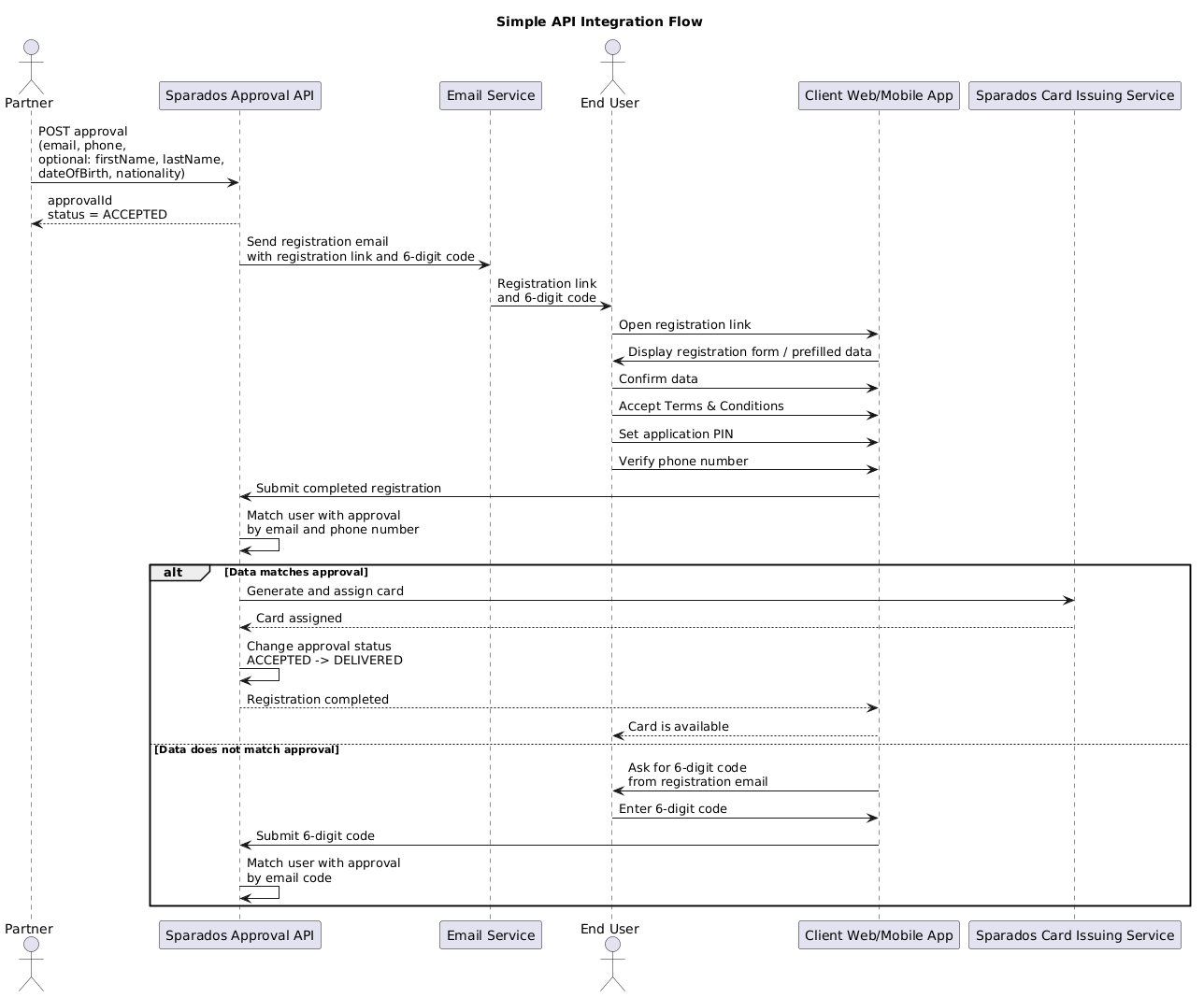
1. How Simple API Integration Works
In the Simple API model, the partner starts by creating an approval for the end user using the Approval API.
The approval contains card assignment details, including the user’s email address and phone number. Optionally, the partner may also provide additional user details such as first name, last name, date of birth, and nationality.
After the approval is created, the end user receives an email with a registration link. Depending on the configured setup, the link directs the user to a Sparados hosted mobile or web application.
In the web application flow, the registration link may already contain the user data previously provided through the API.
The end user completes the registration process by:
- confirming their data
- accepting Terms and Conditions
- setting a PIN for the application
- verifying their phone number
After registration is completed, Sparados matches the user with the previously created approval using the email address and phone number.
If the data matches, the card is generated and assigned to the user automatically.
If the data does not match, the user can use the 6-digit code received in the registration email to complete the matching process.
Once the card is generated and assigned, the approval status changes from ACCEPTED to DELIVERED.
Simple API Flow Diagram
2. Values used in Sparados Cards API
Swagger documentation is in the end of document
This section describes common value formats used across Sparados Cards API.
These rules apply when creating approvals, defining card limits, setting validity periods, and managing card-related operations.
Date format
Sparados APIs use the ISO 8601 date and time format.
The expected format is:
YYYY-MM-DDTHH:mm:ss.SSSZWhere:
Tseparates the date from the timeZrepresents Zulu time / UTC time
Example:
2023-05-22T10:00:01.953ZMinor values
All numeric amount values used in Sparados Cards API are provided in minor units.
For example, to assign a card with a limit of 100.50 EUR, send:
10050This applies to values such as:
- card budget
- additional limits
- budget increases
- budget decreases
Currency
Card approvals are created in the currency of the account / balance. The currency does not need to be provided separately when creating an approval, because it is inherited from the selected account / balance.
Each account can have only one currency. Transactions may still be performed in other currencies, depending on the card configuration and transaction rules.
3. Creating Card Approvals
To assign a card to a corporation member, use the POST /secure/approvals endpoint.
A card approval defines who should receive the card, what budget can be used, how long the card should be valid, and what transaction limits should apply. After the approval is created, Sparados sends a registration email to the end user. When the user completes registration and the data matches the approval, the card is generated and assigned automatically. Remember to save the returned approvalId on your side. It will be required later when editing the approval, locking or unlocking the card, changing limits, increasing or decreasing the available budget, or unassigning the card.
Request Body Fields
Required and Optional Fields
Required fields are marked with *.
| Field | Required | Description |
|---|---|---|
balance.id |
Yes | Balance ID / Card Alias ID assigned to your corporation. This value can be copied from the Corporate Panel. |
user.id |
Conditional | Required if you assign the card to an existing user. If user.id is provided, user contact details such as email, prefix, and phone are not required. |
user.email |
Conditional | Required if user.id is not provided. Used for registration, communication, and matching the user with the approval. |
user.prefix |
Conditional | Required if user.id is not provided. Phone number prefix without +. Example: 48. |
user.phone |
Conditional | Required if user.id is not provided. User phone number used for authorization and matching. |
user.firstName |
No | User first name. Can be provided when creating approval for a new user / registration flow. |
user.lastName |
No | User last name. Can be provided when creating approval for a new user / registration flow. |
user.birthDate |
No | User date of birth in date-time format. Example: 1980-01-01T00:00:00.000+00:00. |
user.nationality |
No | User nationality in ISO country code format. Example: PL. |
rules.budgetMinor |
Yes | Total amount in minor units that the user can spend using the card. The amount is provided in the currency of the selected balance. |
rules.validityPeriod.startDate |
Yes | Start date and time of the card validity period in ISO 8601 format. |
rules.validityPeriod.endDate |
Yes | End date and time of the card validity period in ISO 8601 format. |
rules.validityPeriod.timezone |
Yes | Timezone used to adjust the card validity period to the exact local time. Example: Europe/Warsaw. |
rules.limits |
No | List of additional card limits. |
rules.limits.amountMinor |
Conditional | Required when a limit object is provided. Additional periodic limit amount in minor units. For MCC-based rules, this value may be set to 0. |
rules.limits.timeUnit |
Conditional | Required when a limit object is provided. Period for the additional limit. Available values: daily, weekly, monthly. |
rules.limits.type |
Conditional | Required when a limit object is provided. Available values include general, ecommerce, atm, foreign_amount, mcc_whitelist, mcc_blacklist. |
rules.limits.mccList |
Conditional | Required for MCC-based rules such as mcc_whitelist and mcc_blacklist. Contains the list of MCC codes used by the rule. MCC values may be provided as strings, e.g. "5812". |
rules.purpose.ecommerce |
Yes | Defines whether the card can be used for e-commerce transactions. Currently, this should be set to true. |
rules.purpose.allowChangeRequest |
No | Defines whether the user can request changes to card limits. true means the user can send a change request. false means change requests are disabled. |
card.description |
No | Description displayed on the card visual in the user application. Can be a text value, e.g. Travel only, or null. |
card.visual.id |
No | ID of the card visual. This value can be copied from the Corporate Panel. If not provided, the default Sparados visual may be used. |
tags |
No | List of tag IDs or tag values assigned to the approval. Can be an empty array. |
assignedTags.id |
No | ID of an existing assigned tag. Used only if your configuration supports assigned tag objects. |
OTP SMS Code Verification (BETA)
In the BETA environment, OTP SMS codes used during user registration and manual card assignment can be checked using the endpoint below:
GET https://kolombo.verestro.dev/api/projects/Sparados/sms/{phoneNumber}/history/latestExample:
https://kolombo.verestro.dev/api/projects/Sparados/sms/48728209827/history/latestphoneNumber should contain country prefix without + and without spaces.
Additional limits
It's possible to set additional limits on the card, which are optional. If left null, the card issuing service will set default values.
There are four types of additional limits:
1. General limit - periodic limit on all kinds of transactions. This value should be greater than remaining additional limits because it affects them. E.g. if the ATM limit is set to 100 EUR and the general limit is set to 50 EUR, the end user will be able to withdraw only 50 EUR from the ATM. Possible values: amount in minor or null.
2. Online payment limit - periodic limit on e-commerce payments. Possible values: 0, amount in minor or null.
3. ATM limit - periodic limit on ATM withdrawals. Possible values: 0, amount in minor or null.
4. Foreign transaction limit - periodic limit on transactions in a different currency from account currency. Limit is given in the currency of balance and it will be recalculated taking into account exchange rates and commission. Possible values: 0, amount in minor or null.
Possible time units for all additional limits are daily, weekly, and monthly
Possible values od the additional limits:
0 - disabled. End user won't be able to perform online payments, withdraw from ATM or transactions in foreign currencies.
Value in minor - limited to requested value
Null - unlimited. End user will be able to perform online payments, withdraw from ATM or transactions in foreign currencies.
Difference between approval and reapproval:
Approval is created by the corporation in the process of assigning a card. We don't name it simply a card because a card is generated when the end-user redeems a card and the start date of approval occurs. Approval is created earlier, right after calling endpoint PUT /secure/approvals/.
Reapproval can be created by the corporation while editing data on approval (using method PUT /secure/approvals/{id}) in status Delivered or by mobile user when they request a higher limit or change of validity end date. Requesting changes can be disabled by putting the value false in purpose.allowChangeRequest field while creating an approval.
Ensure that you provide all the required fields and follow the instructions to successfully assign a card with the specified limits and rules.
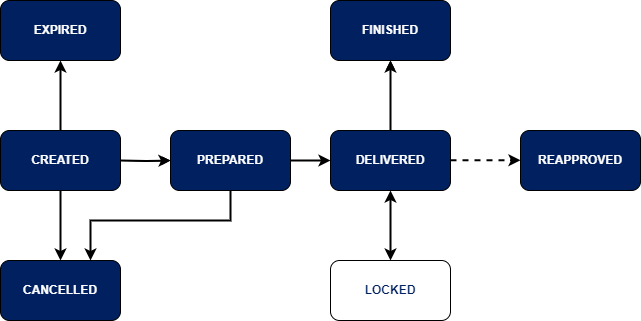
4. Approval Statuses and Available Actions:
Statuses of approvals:
Statuses of an Approval:
Statuses of a Reapproval:
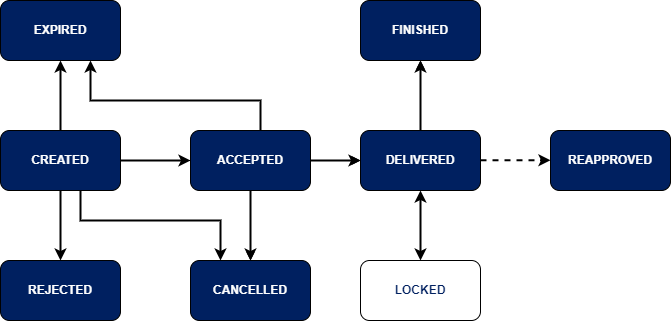
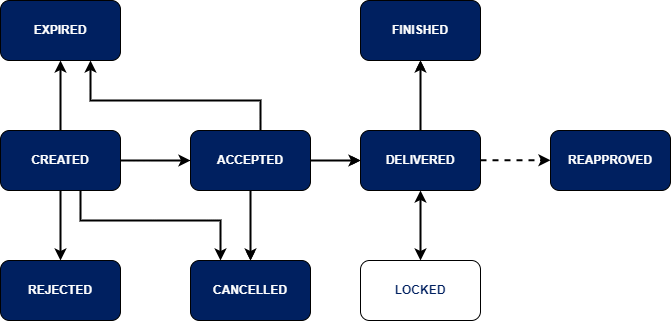
Actions available on approvals:
-
Created: Accept, Reject, Edit, Cancel.
-
Accepted: Cancel
-
Preprared: Cancel
-
Delivered: Lock, Unassign, Edit
-
Locked: Unlock
-
Rejected: —
-
Expired: —
-
Finished: —
Important! Reapproval Acceptance:
-
When a reapproval is accepted, its status changes to "Delivered."
-
The accepted reapproval replaces the previous approval. Therefore, it's crucial to save the ID of the accepted reapproval because, from that moment, it becomes the valid ID of this approval.
-
Concurrently, the status of the original approval changes to "Reapproved."
Unassign card from enduser
If the user has already redeemed the card (status of approval is Delivered), use the PUT /secure/approvals/{id}/unassign method to take away the card from the end-user.
If the user hasn't redeemed the card yet (status of approval is Accepted or Prepared), use the PUT /secure/approvals/{id}/cancel method to take away the card.
Increase or decrease available limit on a card
To quickly increase the available limit on a card, use the PUT /secure/approvals/{id}/increase_budget method.
To add another 10 EUR to the available limit, put the value: "additionalBudgetMinor": 1000 (assuming the minor currency is used with 1 EUR = 100 minor).
To quickly decrease the available limit on a card, use the same method PUT /secure/approvals/{id}/increase_budget but with a negative value.
To subtract 10 EUR from the available limit, put the value: "additionalBudgetMinor": -1000.
4. System Email Notifications
E-mails can be adjusted to your corporation and sent in different language. Contact Sparados for details.
4. Sparados Transaction API
Description
Sparados Transaction History API consists of inbound and outbound APIs(Outbound API is only tagged because OAS version which is used in this document is elder than OAS 3.1 in which webhooks was introduced)
Inbound Authentication
This API requires Mutual TLS authentication. You can use the same certificate for all mTLS-secured APIs exposed by Sparados. If you don't have one, follow this instruction: Connecting to server-to-server APIs
Outbound Authentication
During outbound call, server will present own certificate which is signed by Verestro (technology provider) CA and will proof possession of the private key during TLS handshake. Client can put configuration to trust all certificates signed by given CA. Every environment has own CA certificate and client has to use corresponding to environment root CA certificate
Backward compatibility
Any additional development in service will be backward compatible. Changes below are considered to be backward compatible, and client should not brake if any change will appear in future:
-
adding a new endpoint.
-
adding a new, optional, request parameter to an existing endpoint. The parameter can be added as part of the request body, as a URL parameter, or an HTTP header
-
adding a new enum value. The value is added either in the request or in the response.
-
relaxing some of the constraints on an existing request parameter. For example, making it optional
-
adding a new response parameter to the API response
Summing up: Client should ignore any unknown fields or enum values received as part of API responses
Outbound Retry Strategy
Outbound calls that fail with a timeout, connection failure, or an HTTP response code of 5xx, server will automatically retry 3 times with up to a 5-second wait between each try. If the call has not succeeded after the initial retries server will attempt a second round of 3 retries with increasing time intervals between each retry. Between attempts the system will wait 15 minutes, 30 minutes, and then 2 hours. If client server will not respond and retries are exhausted then call is dismissed
Transaction API
Cards API Swagger Documentation
@swagger="https://sparados-bc-api.upaidtest.pl/api-secure.yaml"
Full API Integration
CHANGELOG
| Version | Date | Changes |
|---|---|---|
| v1.1 | 2026-07-08 |
|
| v1.0 | 2026-04-01 | Initial release. |
FULL API INTEGRATION
Full API Integration is designed for partners who want to embed the full card issuing flow directly into their own system.
In this model, the partner does not use Sparados hosted mobile or web applications. Instead, the partner manages the end-user experience on its own side and communicates with Sparados APIs directly.
Full API Integration allows partners to:
- create users via API
- create cards via API
- manage card lifecycle
- retrieve and display card data, including PAN / CVV
- handle OTP and 3DS flows
- receive Apple Pay / Google Pay OTP notifications
- retrieve transactions and receive transaction notifications
This integration model gives the partner full control over the user and card flow, but may require PCI DSS compliance if sensitive card data is received, processed, stored, or displayed.
Before using Full API Integration, the partner must complete onboarding with Sparados, sign the cooperation agreement, and configure Mutual TLS authentication for the selected environment.
API Endpoints
|
API |
Integration |
BETA |
PROD |
|---|---|---|---|
|
Card, User, Card Data, 3DS and X-Pay Notifications API (swagger) |
Simple / Full |
|
|
|
Transaction API (swagger) |
Simple / Full |
|
|
1. SERVER-TO-SERVER SECURITY
Communication between the partner and Sparados is secured using TLS certificates. The authentication method depends on the communication direction.
Partner → Sparados APIs
All requests sent by the partner to Sparados APIs require Mutual TLS (mTLS). The partner must configure the client certificate provided during onboarding. The same client certificate can be used across all mTLS-protected APIs unless agreed otherwise.
Instructions for generating and configuring the client certificate are available in the Connecting Server-to-Server section.
Sparados → Partner Webhooks
Webhook notifications, including Transaction API, 3DS OTP and Wallet notifications, are delivered over HTTPS. During the TLS handshake, Sparados presents its TLS server certificate. The partner system should validate the certificate before accepting the connection.
CA Certificates:
• BETA – ca_beta.crt
• PROD – ca_prod.crt
These CA certificates should be used to verify the TLS server certificate presented by Sparados during webhook delivery.
2. HOW FULL API INTEGRATION WORKS
Full API documentation is available here:
Swagger Full API Documentation
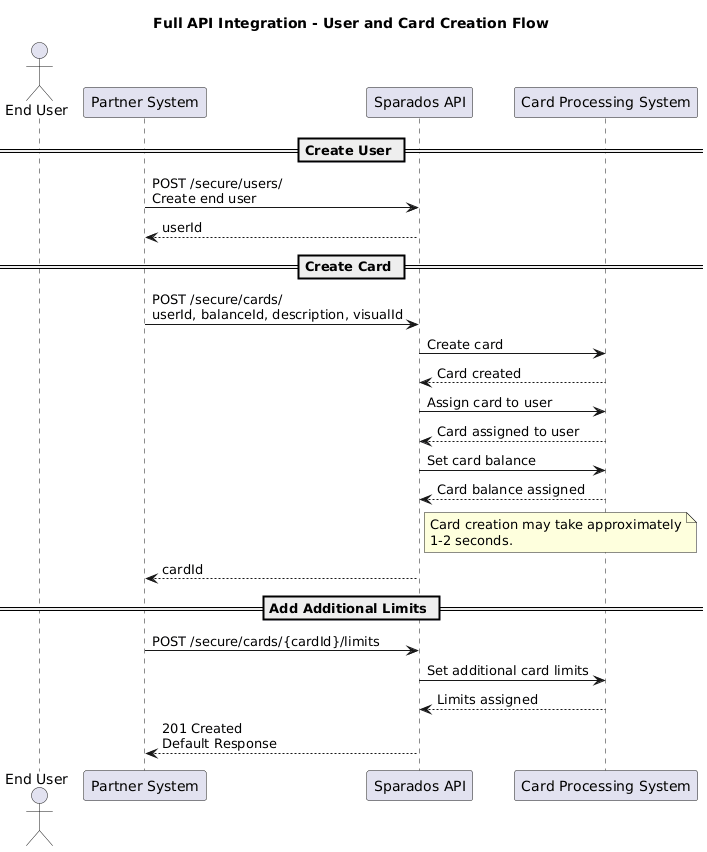
In the Full API model, the partner creates the end user and card directly through API.
The process starts with creating a user using:
POST /secure/users/
The partner must provide the required user details, including email, phone number, first name, last name, date of birth, and nationality. After the user is created, Sparados returns id, which should be stored as userId.
The partner then creates a card for this user using:
POST /secure/cards/
The partner provides the returned userId in the card creation request body, together with the balanceId of the balance from which the card should be funded and basic card details such as description and visual identifier.
Once the card has been created successfully, Sparados returns cardId.
If additional limits need to be assigned to the card, they should be added only after the card has been created, using:
POST /secure/cards/{cardId}/limits
After the additional limits are created successfully, Sparados returns 201 Created with the created limit details. Once the card has been created successfully, Sparados returns cardId.
3. VALUES USED IN SPARADOS CARDS API
Detailed Swagger documentation is available at the end of this document.
This section describes common value formats used across Sparados Cards API.
These rules apply when creating cards, defining card limits, setting validity periods, and managing card-related operations.
Date format
Sparados APIs use the ISO 8601 date and time format.
The expected format is:
YYYY-MM-DDExample:
2023-05-22Minor values
All numeric amount values used in Sparados Cards API are provided in minor units.
For example, to assign a card with a limit of 100.50 EUR, send:
10050This applies to values such as:
- card budget
- additional limits
- budget increases
- budget decreases
Currency
Cards are created in the currency of the linked balance. The currency does not need to be provided separately when creating a card, because it is inherited from the selected linked balance.
Each balance can have only one currency. Transactions may still be performed in other currencies, depending on the card configuration and transaction rules.
4. USER MANAGEMENT
In Full API Integration, the partner manages end users directly through API.
The user must be created before a card can be assigned to that user.
User API Methods
|
Method |
Endpoint |
Description |
|---|---|---|
|
|
|
Creates a new end user. |
|
|
|
Retrieves the list of users. |
|
|
|
Retrieves details of a specific user. |
|
|
|
Updates selected user details. |
|
|
|
Deletes or deactivates the user, depending on the agreed configuration. |
GET USERS
To retrieve the list of users created for the partner, use:
GET /secure/users/
This endpoint returns users available under the partner configuration. The returned user id should be stored as userId and used when creating or managing cards assigned to this user.
Example response:
[
  {
    "id": 123456,
    "email": "john.smith@example.com",
    "phoneNumber": "48123456789",
    "firstName": "John",
    "lastName": "Smith"
  }
]
CREATE USER
POST /secure/users/
Required fields:
|
Field |
Type |
Description |
|---|---|---|
|
|
|
End user’s email address. |
|
|
|
End user’s phone number. |
|
|
|
End user’s first name. |
|
|
|
End user’s last name. |
|
|
|
End user’s date of birth. Recommended format: |
|
|
|
End user’s nationality. Recommended ISO country code, for example |
Example request:
{
  "email": "john.smith@example.com",
  "phoneNumber": "48123456789",
  "firstName": "John",
  "lastName": "Smith",
  "dateOfBirth": "1990-01-01",
  "nationality": "PL"
}
Example response:
{
  "id": 123456
}
The returned id should be stored by the partner as userId and used when creating a card through POST /secure/cards/.
5. CREATE CARD
To issue a new virtual card for an existing user, use:
POST /secure/cards/
This endpoint issues a new virtual card linked to the selected balance and assigns it to the specified user.
The user must be created first through:
POST /secure/users/
After the user is created, Sparados returns id, which should be used as userId in the card creation request body.
The card is created directly using the selected balanceId and the assigned userId.
The partner can obtain the available balanceId values by calling:
GET /secure/balances/
The currency of the card depends on the selected balanceId. For example, if the card is linked to a EUR balance, the card currency will be EUR. If the card is linked to a PLN balance, the card currency will be PLN.
The budgetMinor field is optional. If it is not provided, the user can spend up to the amount available on the linked balance. If budgetMinor is provided, it defines the spending limit assigned to the card. A transaction is approved only if both the linked balance and the card budget are sufficient.
The visualId is provided by Sparados when a new card visual is created for the client. If it is not provided, the default card visual is used. Providing the correct visualId ensures that the card is displayed correctly in Apple Wallet and Google Wallet.
The description field is optional. It is displayed in the Sparados webview when the partner uses it to present card details, but the partner may also use this field to store its own card description or reference.
The response from POST /secure/cards/ may take approximately 1–2 seconds, because Sparados creates the card, assigns it to the user, and configures the card balance before returning the response.
Once the response is returned, the card is already created and ready to use. Sparados returns the created card data, including cardId. The partner should store this value, as it is required for later card management, card data retrieval, and adding additional limits to the card.
Request body example:
{
  "balanceId": "3fa85f64-5717-4562-b3fc-2c963f66afa6",
  "userId": 0,
  "budgetMinor": 0,
  "description": "string",
  "visualId": 0,
  "endDate": "2031-07-08"
}
Request body fields:
| Field | Type | Description |
|---|---|---|
balanceId* |
string, uuid | UUID of the balance the card will be funded from. The partner can obtain this value by calling GET /secure/balances/. The card currency depends on the selected balance. |
userId* |
integer | ID of the user the card will be assigned to. This value is returned by POST /secure/users/. |
budgetMinor |
integer | Optional spending limit assigned to the card, expressed in minor currency units, for example 10000 = 100.00 PLN. If this field is not provided, the card may spend up to the amount available on the linked balance. If provided, both the linked balance and the card budget must be sufficient for the transaction to be approved. |
description |
string | Optional card description. It is displayed in the Sparados webview and may also be used by the partner to store its own card description or reference. |
visualId |
integer | Card visual identifier provided by Sparados when a new card visual is created for the client. If not provided, the default card visual will be used. This value is required for correct card display in Apple Wallet and Google Wallet. |
endDate |
YYYY-MM-DD |
Optional card expiry date in YYYY-MM-DD format (Europe/Warsaw timezone). The date cannot be later than the default card validity of 5 years from the card creation date. If omitted, the card expires after 5 years. The card is automatically deleted shortly before midnight (Europe/Warsaw time) on the specified date.
|
Additional properties are not processed by the API.
Example response:
{
  "id": 354
}
GET CARD DETAILS
To retrieve information about an existing card, use:
GET /secure/cards/{id}
This endpoint returns non-sensitive card information together with the current card status, assigned user, linked payment balance, budget configuration and available spending amount. Sensitive card data such as the full PAN and CVV is not returned by this endpoint. To retrieve encrypted PAN and CVV, use GET /secure/cards/{id}/sensitive.
Example response:
{
  "id": 12,
  "userId": 35,
  "balanceId": "3fa85f64-5717-4562-b3fc-2c963f66afa6",
  "visualId": 5,
  "pan": "5414********2598",
  "expiryDate": "05/31",
  "endDate": "2031-05-31",
  "description": "Marketing Team",
  "status": "ACTIVE",
  "budgetMinor": 100000,
  "balanceMinor": 85000
}
Response fields
| Field | Type | Description |
|---|---|---|
id |
integer | Unique identifier of the card. |
userId |
integer | Identifier of the user assigned to the card. |
balanceId |
string (UUID) | Identifier of the payment balance linked to the card. |
visualId |
integer | Card visual identifier. |
pan |
string | Masked Primary Account Number (PAN) displayed for card identification. |
expiryDate |
string | Card expiration date displayed on the card (MM/YY). |
endDate |
string | Date when the card expires and becomes inactive. |
description |
string | Optional card description provided during card creation. |
status |
string | Current card status (for example: ACTIVE, BLOCKED, EXPIRED). |
budgetMinor |
integer | Total spending budget assigned to the card, expressed in minor currency units. |
balanceMinor |
integer | Current amount still available for spending from the assigned card budget, expressed in minor currency units. |
Note
budgetMinor represents the total spending limit assigned to the card, while balanceMinor represents the remaining amount available for spending. These values are independent from the payment account balance returned by GET /secure/balances/{balanceId}.
CARDS LIST
GET /secure/cards/
Retrieve a list of cards associated with your corporation, including their balance, budget and status. Supports filtering, sorting and cursor-based pagination.
Query parameters
| Field | Type | Description |
|---|---|---|
| id | integer | Filter by card ID |
| lastFourDigits | string | Filter by the last four digits of the card |
| userEmail | string | Filter by the assigned user's email |
| userId | integer | Filter by assigned user ID |
| balanceId | string (uuid) | Filter by funding balance ID |
| createdAtFrom | string | Filter by creation date, lower bound |
| createdAtTo | string | Filter by creation date, upper bound |
| status | string | Filter by card status: active, locked |
| orderBy | string | Sorting field: createdAt, id, userEmail, balanceMinor, budgetMinor, endDate. Default createdAt |
| orderDirection | string | Sorting direction: asc, desc. Default desc |
| cursor | string | Opaque cursor from a previous response's nextCursor |
| limit | integer | Max results per page, up to 1000. Default 100 |
Response fields
| Field | Type | Description |
|---|---|---|
| data | array | List of card objects |
| data[].id | number | Card ID |
| data[].userId | number | ID of the assigned user |
| data[].userEmail | string, nullable | Email of the assigned user |
| data[].balanceId | string (uuid), nullable | ID of the funding balance |
| data[].currency | string, nullable | ISO 4217 currency of the funding balance |
| data[].visualId | integer, nullable | Card design template identifier |
| data[].lastFourDigits | string, nullable | Last four digits of the card |
| data[].budgetMinor | number, nullable | Spend limit in minor currency units |
| data[].balanceMinor | number, nullable | Remaining spendable balance in minor currency units |
| data[].endDate | string, nullable | Custom expiry date, if set |
| data[].expiryDate | string | Default card expiry date, YYYY-MM-DD |
| data[].createdAt | string (date-time) | Card creation timestamp |
| data[].lockedAt | string (date-time), nullable | Timestamp the card was locked, if applicable |
| data[].status | string | Card status: active, locked |
| nextCursor | string, nullable | Pass as cursor to fetch the next page, or null if none |
Example response
{
"data": [
{
"id": 1234,
"userId": 88,
"userEmail": "jane.doe@example.com",
"balanceId": "67716ba1-081b-4919-8aae-9fdbee10be23",
"currency": "EUR",
"visualId": 1,
"lastFourDigits": "1234",
"budgetMinor": 50000,
"balanceMinor": 32000,
"endDate": null,
"expiryDate": "2031-05-31",
"createdAt": "2026-08-01T10:15:00Z",
"lockedAt": null,
"status": "active"
}
],
"nextCursor": null
}
CARD BUDGET
A card budget defines how much can be spent using a specific card. It is independent from the linked balance, which represents the actual funds available on the payment account.
| Field | Meaning |
|---|---|
budgetMinor |
Spending limit assigned to the card. This value defines the maximum amount that can be spent using the card. |
balanceMinor |
Available amount remaining from the card budget. This value decreases after successful transactions. |
Example:
Initial budget:
budgetMinor  = 100000 (1,000.00 EUR)
balanceMinor = 100000 (1,000.00 EUR)

After spending 250.00 EUR:
budgetMinor  = 100000
balanceMinor = 75000
Card budget and additional card limits are independent mechanisms. The card budget defines how much can be spent by the card, while additional card limits define how, where, and how often the card may be used, for example ATM withdrawals, e-commerce transactions, MCC restrictions, merchant restrictions, or transaction count limits. Both validations are performed during transaction authorization.
ADJUSTING CARD BUDGET
To adjust the card budget, use:
PATCH /secure/cards/{id}/budget
This endpoint changes the card budget by the value provided in adjustmentAmountMinor. A positive value, or a value without the + sign, increases the card budget. A negative value decreases the card budget.
Request body fields:
| Field | Type | Description |
|---|---|---|
adjustmentAmountMinor* |
integer | Amount by which the card budget should be adjusted. The value is expressed in minor currency units. Positive values increase the card budget. Negative values decrease the card budget. |
Examples:
{
  "adjustmentAmountMinor": 10000
}
This increases the card budget by 100.00 EUR.
{
  "adjustmentAmountMinor": -5000
}
This decreases the card budget by 50.00 EUR.
This endpoint does not add funds to the linked balance and does not change the payment account balance. The card must already have a budget configured. Otherwise, the API returns HTTP 409 Conflict.
RESETTING CARD BUDGET
To reset the card budget, use:
POST /secure/cards/{id}/budget/reset
This endpoint recreates the existing budget and resets the spent amount, making the full budget available again.
Request body fields:
| Field | Type | Description |
|---|---|---|
newBudgetMinor |
integer | Optional. If provided, the budget is recreated using the new value and the full amount becomes available again. If omitted, the existing budget value is reused and the available amount is reset to the current budget. |
The card must already have a budget configured. Otherwise, the API returns HTTP 409 Conflict.
6. CHECKING ACCOUNT BALANCE
To check the balance of the payment account connected with issued cards, use:
GET /secure/balances/{balanceId}
This method returns the current balance of the payment account linked to issued cards. This is the actual account balance, not the card budget.
The balanceId required for this method is provided by Sparados after the payment account is created for the partner.
7. ADDITIONAL CARD SPENDING LIMITS
After the card has been created, additional card limits can be assigned using:
POST /secure/cards/{id}/limits
This endpoint adds one limit to an existing card. Additional limits should be added only after the card has been successfully created and is ready to use. Each POST /secure/cards/{id}/limits request adds a single additional limit. Editing and deleting limits are also performed one by one. Only the GET method returns a list of limits assigned to the card.
All amountMinor values are provided in minor currency units, for example 10000 = 100.00 PLN. Amount-based limits are cumulative, not per-transaction limits. Each successful transaction reduces the remaining amount available until the applicable limit period resets or the limit is removed.
REQUEST BODY FIELDS
| Field | Type | Description |
|---|---|---|
type |
string | Type of the card limit. |
amountMinor |
integer | Amount limit in minor currency units, for example 10000 = 100.00 PLN. Used for amount-based limits. |
maxAttempts |
integer | Maximum number of transactions allowed within the selected period. Used for quantity-based limits. |
period |
string | Limit period. Available values: DAILY, WEEKLY, MONTHLY. |
mccList |
array of strings | List of merchant category codes used for MCC whitelist or blacklist limits. |
merchantIdList |
array of strings | List of merchant IDs used for merchant whitelist or blacklist limits. |
SUPPORTED LIMIT TYPES
TRX_ALL — cap on all transactions combined.
{
  "type": "TRX_ALL",
  "amountMinor": 50000,
  "maxAttempts": 10,
  "period": "MONTHLY"
}
TRX_E_COM — cap on e-commerce transactions only.
{
  "type": "TRX_E_COM",
  "amountMinor": 10000,
  "maxAttempts": 5,
  "period": "DAILY"
}
TRX_ATM — cap on ATM withdrawals.
{
  "type": "TRX_ATM",
  "amountMinor": 30000,
  "maxAttempts": 2,
  "period": "WEEKLY"
}
FOREIGN_AMOUNT — cap on the total amount spent in a foreign currency.
{
  "type": "FOREIGN_AMOUNT",
  "amountMinor": 20000,
  "period": "MONTHLY"
}
FOREIGN_QUANTITY — cap on the number of foreign-currency transactions.
{
  "type": "FOREIGN_QUANTITY",
  "maxAttempts": 3,
  "period": "DAILY"
}
QUANTITY — cap on total transaction count regardless of transaction type.
{
  "type": "QUANTITY",
  "maxAttempts": 100,
  "period": "DAILY"
}
AMOUNT_PLN — cap on PLN-denominated spend.
{
  "type": "AMOUNT_PLN",
  "amountMinor": 50000,
  "period": "WEEKLY"
}
AMOUNT_EUR — cap on EUR-denominated spend.
{
  "type": "AMOUNT_EUR",
  "amountMinor": 20000,
  "period": "MONTHLY"
}
MCC_BLACKLIST — blocks transactions at terminals with the given merchant category codes.
{
  "type": "MCC_BLACKLIST",
  "mccList": ["5812", "5813"]
}
MCC_WHITELIST — allows transactions only at terminals with the given merchant category codes.
{
  "type": "MCC_WHITELIST",
  "mccList": ["5812"]
}
MERCHANT_ID_BLACKLIST — blocks transactions at specific merchants.
{
  "type": "MERCHANT_ID_BLACKLIST",
  "merchantIdList": ["9AF3C2B1D4E5"]
}
MERCHANT_ID_WHITELIST — allows transactions only at specific merchants.
{
  "type": "MERCHANT_ID_WHITELIST",
  "merchantIdList": ["9AF3C2B1D4E5"]
}
RESPONSE
After the limit has been created successfully, the API returns 201 Created with the created limit details.
Example response:
{
  "id": "3fa85f64-5717-4562-b3fc-2c963f66afa6",
  "type": "TRX_ALL",
  "amountMinor": 0,
  "maxAttempts": 0,
  "period": "DAILY",
  "mccList": [
    "string"
  ],
  "merchantIdList": [
    "string"
  ]
}
The returned id is the limit ID. The partner should store this value if the limit may need to be edited or removed later. The same limit ID can also be retrieved using the GET method that returns the list of limits assigned to the card.
MULTIPLE AND OVERLAPPING LIMITS
The API allows multiple limits of the same type, including limits with the same period. All applicable limits are checked for each transaction, so the most restrictive limit is effectively enforced. For example, if a card has two weekly TRX_ATM limits of 100 EUR and 50 EUR, the effective weekly ATM limit is 50 EUR.
The API validates conflicts between whitelists and blacklists because these rules are mutually exclusive. MCC_WHITELIST and MCC_BLACKLIST cannot be active at the same time, and the same rule applies to MERCHANT_ID_WHITELIST and MERCHANT_ID_BLACKLIST.
GETTING, EDITING AND DELETING CARD LIMITS
If the partner wants to edit an existing limit, the partner must use the limit ID in the PATCH method. This limit ID is returned when the limit is created using POST /secure/cards/{id}/limits. It can also be retrieved by calling the GET method that returns the list of limits assigned to the card. To change an existing limit, the partner should either edit the existing limit using its limit ID or remove the existing limit first and then add a new one.
The difference is how accumulated usage counters are handled. If the existing limit is edited, the current usage counter is preserved. If the limit is removed and a new limit is created, the accumulated usage counter associated with the removed limit is not carried over to the new limit
For example, if the card has a TRX_ATM limit of 100 EUR and the user has already spent 20 EUR, then increasing the existing limit to 200 EUR means the user will still have 180 EUR available under this limit. However, if the partner removes the existing TRX_ATM limit and then adds a new TRX_ATM limit of 200 EUR, the accumulated usage counter is reset and the user will have the full 200 EUR available under the new limit.
Recommended approach:
If the partner wants to change the limit value while preserving accumulated usage, the existing limit should be edited using its limit ID. If the partner wants to reset accumulated usage, the existing limit should be removed and a new limit should be created.
Although the API allows multiple limits of the same type, removing or editing the existing limit before adding its replacement is recommended to avoid overlapping limits and unclear card configuration.
8. INTERNAL ACCOUNT TRANSFER
The transfer is performed directly between two balances identified by their balanceId values.
To transfer funds between payment accounts, use:
POST /secure/transfers/internal
The transfer is made between two balances identified by their balanceId values.
Both balances must belong to the same corporation and be maintained in the same currency. Transfers between different corporations or currencies are not supported.
Request body example:
{
  "senderBalanceId": "3fa85f64-5717-4562-b3fc-2c963f66afa6",
  "receiverBalanceId": "7c9e6679-7425-40de-944b-e07fc1f90ae7",
  "amountMinor": 10000
}
Request body fields:
| Field | Type | Description |
|---|---|---|
senderBalanceId* |
string, UUID | ID of the balance from which the funds will be transferred. |
receiverBalanceId* |
string, UUID | ID of the balance to which the funds will be transferred. |
amountMinor* |
integer | Transfer amount in minor currency units, for example 10000 = 100.00 EUR. |
Response
If the transfer is completed successfully, the API returns the identifiers of the two transactions created as part of the internal transfer.
{
  "receiverTransactionId": "3fa85f64-5717-4562-b3fc-2c963f66afa6",
  "senderTransactionId": "3fa85f64-5717-4562-b3fc-2c963f66afa6"
}
Response fields
|
Field |
Type |
Description |
|---|---|---|
|
|
string, UUID |
Identifier of the incoming transaction created on the receiver’s balance. This transaction represents the credit to the destination balance. |
|
|
string, UUID |
Identifier of the outgoing transaction created on the sender’s balance. This transaction represents the debit from the source balance. |
The returned transaction identifiers can be used to retrieve transaction details using the transaction endpoints or for reconciliation and audit purposes.
The source balance must contain sufficient funds to complete the transfer.
Available balanceId values can be retrieved using:
GET /secure/balances/
9. CARD DATA RETRIEVAL
To retrieve encrypted card details, use:
GET /secure/cards/{id}/sensitive
This endpoint returns sensitive card data, including PAN and CVV, in encrypted form.
The {id} parameter is the cardId returned by POST /secure/cards/
Encryption
Card details are always returned as a JWE token.
To decrypt the response, the partner must provide an RSA public key with each request.
The card data is encrypted using the provided public key. Only the holder of the matching private key can decrypt the response.
Requirements
|
Requirement |
Description |
|---|---|
|
RSA key pair |
Minimum key size: |
|
Public key format |
Base64-encoded SPKI PEM. |
|
Request header |
Public key must be sent in the |
|
Response format |
API returns encrypted payload as a JWE compact token. |
|
Encryption algorithm |
|
Request Header
|
Header |
Value |
|---|---|
|
|
Base64-encoded RSA public key in SPKI PEM format. |
Response Format
{
  "payload": "<JWE compact token>"
}
Decrypted Payload Example
After decrypting the JWE token, the payload contains card details:
{
  "id": 123,
  "type": "VIRTUAL",
  "cardNo": "5414599451242598",
  "cvv": "111",
  "exp": "2031-05-31",
  "issuerCardId": "1111111111111111",
  "dcCorporationId": "7f846a2f-92b4-4094-a776-35cf3753ef51",
  "balanceId": "67716ba1-081b-4919-8aae-9fdbee10be23"
}
Recommended Security Flow
If card data should be visible only to the end user, the key pair should be generated on the frontend side.
Recommended flow:
- The frontend generates a temporary RSA key pair.
- The frontend keeps the private key locally, for example in the user session.
- The frontend sends only the public key to the partner backend.
- The partner backend forwards the public key to Sparados API in the
Public-Keyheader. - Sparados returns encrypted card data as a JWE token.
- The encrypted payload is forwarded back to the frontend.
- The frontend decrypts the payload using the private key.
- PAN and CVV are displayed only to the end user.
Security Note
Never send the private key to Sparados API or to the partner backend if the decrypted card data should be accessible only to the end user. Only the public key should be sent in the request header.
Accessing, processing, storing, or displaying PAN / CVV may require PCI DSS compliance.
10. SPARADOS TRANSACTION API
Sparados Transaction History API allows partners to retrieve transaction history and receive transaction notifications.
The API consists of two parts:
|
Type |
Description |
|---|---|
|
Inbound API |
API methods called by the partner to retrieve transaction data from Sparados. |
|
Outbound API |
Webhook notifications sent by Sparados to the partner system when transaction events occur. |
Transaction API documentation is available here:
Authentication
Authentication and certificate requirements are described in the Server-to-Server Security section. Inbound API requests require Mutual TLS (mTLS). Outbound webhook notifications are delivered over HTTPS using the Sparados TLS server certificate.
Backward Compatibility
Future API changes will be backward compatible. The following changes may be introduced without breaking compatibility:
- adding a new endpoint
- adding a new optional request parameter
- adding a new optional response field
- adding a new enum value
- relaxing validation rules for an existing parameter, for example making it optional
- The partner system should ignore unknown fields and unknown enum values received in API responses.
Outbound Retry Strategy
If an outbound webhook call fails because of a timeout, connection issue, or HTTP 5xx response, Sparados will retry the call automatically.
|
Retry stage |
Description |
|---|---|
|
Initial retries |
3 retries with up to 5 seconds between each attempt. |
|
Extended retries |
If the call still fails, Sparados performs 3 additional retries after 15 minutes, 30 minutes, and 2 hours. |
|
Final result |
If all retries fail, the webhook call is dismissed. |
The partner endpoint should return a successful HTTP 2xx response after receiving and processing the notification. Webhook delivery should be treated as at-least-once, so the partner should process webhook notifications idempotently.
11. OTP AND WALLET NOTIFICATION WEBHOOKS
In Full API Integration, Sparados can send OTP and wallet-related notifications to endpoints provided by the partner.
The partner must provide Sparados with the full webhook URLs that should be used for notification delivery.
Webhook notifications are delivered over HTTPS using the Sparados TLS server certificate. Authentication and certificate requirements are described in the Server-to-Server Security section.
The partner endpoint should return:
204 No Content
to confirm that the notification was received successfully.
3DS OTP Notification
This webhook is triggered when a 3DS OTP is generated for a card in your corporation.
Endpoint
POST {3ds_otp_notification_url}
The full endpoint URL is provided by the partner during integration setup.
Request Body
|
Field |
Type |
Description |
|---|---|---|
|
|
|
Balance ID related to the card. |
|
|
|
Transaction currency. |
|
|
|
Merchant name for the transaction. |
|
|
|
3DS one-time password generated for the transaction. |
|
|
|
Card ID. |
|
|
|
User ID assigned to the card. |
|
|
|
Transaction amount in minor units. |
|
|
|
Last 4 digits of the card number. |
Example Request Body
{
  "balanceId": "3fa85f64-5717-4562-b3fc-2c963f66afa6",
  "currency": "EUR",
  "merchantName": "Example Merchant",
  "otp": "123456",
  "cardId": 123,
  "userId": 456,
  "amountMinor": 1000,
  "cardLast4Digits": "2598"
}
Expected Response
204 No Content
Wallet Notifications
This webhook is triggered when a wallet notification event occurs for a card in your corporation.
It is used for Apple Pay / Google Pay related events, including activation code delivery and token status updates.
Endpoint
POST {wallet_notifications_url}
The full endpoint URL is provided by the partner during integration setup.
Message Types
|
|
Description |
|---|---|
|
|
Wallet activation code should be delivered to the end user. |
|
|
Wallet token has been activated. |
|
|
Card has been removed from the wallet by the customer. |
|
|
Card has been removed from the wallet by the issuer. |
Request Body
|
Field |
Type |
Description |
|---|---|---|
|
|
|
Last 4 digits of the card number. |
|
|
|
Wallet provider / token requestor type. |
|
|
|
Wallet notification type. |
|
|
|
Activation method type. Present only for |
|
|
|
Activation method value. Present only for |
|
|
|
Wallet activation code. Present only for |
|
|
|
Device or wallet form factor. |
|
|
|
Card ID. |
Example Request Body
{
  "cardLast4Digits": "2598",
  "tokenRequestorType": "APPLE_PAY",
  "messageType": "ACTIVATION_CODE_DELIVERY",
  "activationMethodType": "SMS",
  "activationMethodValue": "48123456789",
  "activationCode": "123456",
  "formFactor": "PHONE",
  "cardId": 123
}
Expected Response
204 No Content
Important
The fields activationCode, activationMethodType, and activationMethodValue are present only when messageType is:
ACTIVATION_CODE_DELIVERY
12. API SWAGGER DOCUMENTATION
Detailed API documentation is available here:
|
API |
Documentation link |
|---|---|
|
Full API Swagger |
|
|
Cards API Swagger |
|
|
Transaction API Documentation |
|
Use the Swagger documentation as the source of detailed endpoint schemas, request parameters, response formats, and available enum values.
Widget API Integration
CHANGELOG
| Version | Date | Changes |
|---|---|---|
| v1.0 | 2026-09-09 | Initial release. |
WIDGET API INTEGRATION
Widget API Integration is designed for partners who want to manage the full user and card lifecycle through the Sparados API, while displaying card details to end users through the Sparados Card Widget instead of building their own card display and handling PAN / CVV directly.
In this model, the partner does not use Sparados hosted mobile or web applications, and does not receive or process raw PAN / CVV. Instead, the partner manages the end-user experience on its own side, communicates with Sparados APIs directly for user, card, balance and limit management, and embeds the Sparados Card Widget to show card details, balance and transaction history, and Add to Apple Wallet / Add to Google Wallet buttons.
Widget API Integration allows partners to:
- create users via API
- create cards via API
- manage card lifecycle
- display card data to end users through the Sparados Card Widget, without receiving PAN / CVV on the partner backend
- retrieve transactions and receive transaction notifications
This integration model gives the partner control over the user and card management flow, while keeping PCI DSS scope minimal, since sensitive card data is never received, processed, or stored by the partner.
Before using Widget API Integration, the partner must complete onboarding with Sparados, sign the cooperation agreement, and configure Mutual TLS authentication for the selected environment.
API Endpoints
| API | Integration | BETA | PROD |
|---|---|---|---|
| Card, User, Card Data, 3DS and X-Pay Notifications API (swagger) | Widget | https://sp-api.secure-verestro.dev | https://sp-api.secure-verestro.com |
| Transaction API (swagger) | Widget | https://services.upaidtest.pl/thc | https://services.upaid.pl/thc |
1. SERVER-TO-SERVER SECURITY
Communication between the partner and Sparados is secured using TLS certificates. The authentication method depends on the communication direction.
Partner → Sparados APIs
All requests sent by the partner to Sparados APIs require Mutual TLS (mTLS). The partner must configure the client certificate provided during onboarding. The same client certificate can be used across all mTLS-protected APIs unless agreed otherwise.
Instructions for generating and configuring the client certificate are available in the Connecting Server-to-Server section.
Sparados → Partner Webhooks
Webhook notifications, including Transaction API, 3DS OTP and Wallet notifications, are delivered over HTTPS. During the TLS handshake, Sparados presents its TLS server certificate. The partner system should validate the certificate before accepting the connection.
CA Certificates:
• BETA – ca_beta.crt
• PROD – ca_prod.crt
These CA certificates should be used to verify the TLS server certificate presented by Sparados during webhook delivery.
2. HOW WIDGET API INTEGRATION WORKS
In the Widget API model, the partner creates the end user and card directly through API, exactly as in Full API Integration. The process starts with creating a user using:
POST /secure/users/
The partner must provide the required user details, including email, phone number, first name, last name, date of birth, and nationality. After the user is created, Sparados returns id, which should be stored as userId.
The partner then creates a card for this user using:
POST /secure/cards/
The partner provides the returned userId in the card creation request body, together with the balanceId of the balance from which the card should be funded and basic card details such as description and visual identifier.
Once the card has been created successfully, Sparados returns cardId.
If additional limits need to be assigned to the card, they should be added only after the card has been created, using:
POST /secure/cards/{cardId}/limits
To show the card to the end user, instead of calling a card data retrieval endpoint directly, the partner requests a widget session token for that user and embeds the Sparados Card Widget. See section 9, WIDGET INTEGRATION, for details.
3. VALUES USED IN SPARADOS CARDS API
Detailed Swagger documentation is available at the end of this document.
This section describes common value formats used across Sparados Cards API. These rules apply when creating cards, defining card limits, setting validity periods, and managing card-related operations.
Date format
Sparados APIs use the ISO 8601 date and time format. The expected format is:
YYYY-MM-DDExample:
2023-05-22Minor values
All numeric amount values used in Sparados Cards API are provided in minor units. For example, to assign a card with a limit of 100.50 EUR, send:
10050This applies to values such as:
- card budget
- additional limits
- budget increases
- budget decreases
Currency
Cards are created in the currency of the linked balance. The currency does not need to be provided separately when creating a card, because it is inherited from the selected linked balance. Each balance can have only one currency. Transactions may still be performed in other currencies, depending on the card configuration and transaction rules.
4. USER MANAGEMENT
In Widget API Integration, the partner manages end users directly through API. The user must be created before a card can be assigned to that user.
User API Methods
| Method | Endpoint | Description |
|---|---|---|
| POST | /secure/users/ | Creates a new end user. |
| GET | /secure/users/ | Retrieves the list of users. |
| GET | /secure/users/{userId} | Retrieves details of a specific user. |
| PATCH | /secure/users/{userId} | Updates selected user details. |
| DELETE | /secure/users/{userId} | Deletes or deactivates the user, depending on the agreed configuration. |
GET USERS
To retrieve the list of users created for the partner, use:
GET /secure/users/
This endpoint returns users available under the partner configuration. The returned user id should be stored as userId and used when creating or managing cards assigned to this user.
Example response:
[
  {
    "id": 123456,
    "email": "john.smith@example.com",
    "phoneNumber": "48123456789",
    "firstName": "John",
    "lastName": "Smith"
  }
]
CREATE USER
POST /secure/users/
Required fields:
| Field | Type | Description |
|---|---|---|
| string | End user’s email address. | |
| phoneNumber | string | End user’s phone number. |
| firstName | string | End user’s first name. |
| lastName | string | End user’s last name. |
| dateOfBirth | string | End user’s date of birth. Recommended format: YYYY-MM-DD. |
| nationality | string | End user’s nationality. Recommended ISO country code, for example PL. |
Example request:
{
  "email": "john.smith@example.com",
  "phoneNumber": "48123456789",
  "firstName": "John",
  "lastName": "Smith",
  "dateOfBirth": "1990-01-01",
  "nationality": "PL"
}
Example response:
{
  "id": 123456
}
The returned id should be stored by the partner as userId and used when creating a card through POST /secure/cards/.
5. CREATE CARD
To issue a new virtual card for an existing user, use:
POST /secure/cards/
This endpoint issues a new virtual card linked to the selected balance and assigns it to the specified user.
The user must be created first through POST /secure/users/. After the user is created, Sparados returns id, which should be used as userId in the card creation request body.
The card is created directly using the selected balanceId and the assigned userId. The partner can obtain the available balanceId values by calling GET /secure/balances/.
The currency of the card depends on the selected balanceId. For example, if the card is linked to a EUR balance, the card currency will be EUR. If the card is linked to a PLN balance, the card currency will be PLN.
The budgetMinor field is optional. If it is not provided, the user can spend up to the amount available on the linked balance. If budgetMinor is provided, it defines the spending limit assigned to the card. A transaction is approved only if both the linked balance and the card budget are sufficient.
The visualId is provided by Sparados when a new card visual is created for the client. If it is not provided, the default card visual is used. Providing the correct visualId ensures that the card is displayed correctly in Apple Wallet and Google Wallet.
The description field is optional. It may be displayed inside the Sparados Card Widget, but the partner may also use this field to store its own card description or reference.
The response from POST /secure/cards/ may take approximately 1–2 seconds, because Sparados creates the card, assigns it to the user, and configures the card balance before returning the response.
Once the response is returned, the card is already created and ready to use. Sparados returns the created card data, including cardId. The partner should store this value, as it is required for later card management and adding additional limits to the card.
Request body example:
{
  "balanceId": "3fa85f64-5717-4562-b3fc-2c963f66afa6",
  "userId": 0,
  "budgetMinor": 0,
  "description": "string",
  "visualId": 0,
  "endDate": "2031-07-08"
}
Request body fields:
| Field | Type | Description |
|---|---|---|
| balanceId* | string, uuid | UUID of the balance the card will be funded from. The partner can obtain this value by calling GET /secure/balances/. The card currency depends on the selected balance. |
| userId* | integer | ID of the user the card will be assigned to. This value is returned by POST /secure/users/. |
| budgetMinor | integer | Optional spending limit assigned to the card, expressed in minor currency units, for example 10000 = 100.00 PLN. If this field is not provided, the card may spend up to the amount available on the linked balance. If provided, both the linked balance and the card budget must be sufficient for the transaction to be approved. |
| description | string | Optional card description. It may be displayed inside the Sparados Card Widget and may also be used by the partner to store its own card description or reference. |
| visualId | integer | Card visual identifier provided by Sparados when a new card visual is created for the client. If not provided, the default card visual will be used. This value is required for correct card display in Apple Wallet and Google Wallet. |
| endDate | YYYY-MM-DD | Optional card expiry date in YYYY-MM-DD format (Europe/Warsaw timezone). The date cannot be later than the default card validity of 5 years from the card creation date. If omitted, the card expires after 5 years. The card is automatically deleted shortly before midnight (Europe/Warsaw time) on the specified date. |
Additional properties are not processed by the API.
Example response:
{
  "id": 354
}
GET CARD DETAILS
To retrieve information about an existing card, use:
GET /secure/cards/{id}
This endpoint returns non-sensitive card information together with the current card status, assigned user, linked payment balance, budget configuration and available spending amount. Sensitive card data such as the full PAN and CVV is not returned by this endpoint. In the Widget API model, full card data is shown to the end user only through the Sparados Card Widget, see section 9.
Example response:
{
  "id": 12,
  "userId": 35,
  "balanceId": "3fa85f64-5717-4562-b3fc-2c963f66afa6",
  "visualId": 5,
  "pan": "5414********2598",
  "expiryDate": "05/31",
  "endDate": "2031-05-31",
  "description": "Marketing Team",
  "status": "ACTIVE",
  "budgetMinor": 100000,
  "balanceMinor": 85000
}
Response fields
| Field | Type | Description |
|---|---|---|
| id | integer | Unique identifier of the card. |
| userId | integer | Identifier of the user assigned to the card. |
| balanceId | string (UUID) | Identifier of the payment balance linked to the card. |
| visualId | integer | Card visual identifier. |
| pan | string | Masked Primary Account Number (PAN) displayed for card identification. |
| expiryDate | string | Card expiration date displayed on the card (MM/YY). |
| endDate | string | Date when the card expires and becomes inactive. |
| description | string | Optional card description provided during card creation. |
| status | string | Current card status (for example: ACTIVE, BLOCKED, EXPIRED). |
| budgetMinor | integer | Total spending budget assigned to the card, expressed in minor currency units. |
| balanceMinor | integer | Current amount still available for spending from the assigned card budget, expressed in minor currency units. |
Note: budgetMinor represents the total spending limit assigned to the card, while balanceMinor represents the remaining amount available for spending. These values are independent from the payment account balance returned by GET /secure/balances/{balanceId}.
CARDS LIST
GET /secure/cards/
Retrieve a list of cards associated with your corporation, including their balance, budget and status. Supports filtering, sorting and cursor-based pagination.
Query parameters
| Field | Type | Description |
|---|---|---|
| id | integer | Filter by card ID |
| lastFourDigits | string | Filter by the last four digits of the card |
| userEmail | string | Filter by the assigned user's email |
| userId | integer | Filter by assigned user ID |
| balanceId | string (uuid) | Filter by funding balance ID |
| createdAtFrom | string | Filter by creation date, lower bound |
| createdAtTo | string | Filter by creation date, upper bound |
| status | string | Filter by card status: active, locked |
| orderBy | string | Sorting field: createdAt, id, userEmail, balanceMinor, budgetMinor, endDate. Default createdAt |
| orderDirection | string | Sorting direction: asc, desc. Default desc |
| cursor | string | Opaque cursor from a previous response's nextCursor |
| limit | integer | Max results per page, up to 1000. Default 100 |
Response fields
| Field | Type | Description |
|---|---|---|
| data | array | List of card objects |
| data[].id | number | Card ID |
| data[].userId | number | ID of the assigned user |
| data[].userEmail | string, nullable | Email of the assigned user |
| data[].balanceId | string (uuid), nullable | ID of the funding balance |
| data[].currency | string, nullable | ISO 4217 currency of the funding balance |
| data[].visualId | integer, nullable | Card design template identifier |
| data[].lastFourDigits | string, nullable | Last four digits of the card |
| data[].budgetMinor | number, nullable | Spend limit in minor currency units |
| data[].balanceMinor | number, nullable | Remaining spendable balance in minor currency units |
| data[].endDate | string, nullable | Custom expiry date, if set |
| data[].expiryDate | string | Default card expiry date, YYYY-MM-DD |
| data[].createdAt | string (date-time) | Card creation timestamp |
| data[].lockedAt | string (date-time), nullable | Timestamp the card was locked, if applicable |
| data[].status | string | Card status: active, locked |
| nextCursor | string, nullable | Pass as cursor to fetch the next page, or null if none |
Example response
{
  "data": [
    {
      "id": 1234,
      "userId": 88,
      "userEmail": "jane.doe@example.com",
      "balanceId": "67716ba1-081b-4919-8aae-9fdbee10be23",
      "currency": "EUR",
      "visualId": 1,
      "lastFourDigits": "1234",
      "budgetMinor": 50000,
      "balanceMinor": 32000,
      "endDate": null,
      "expiryDate": "2031-05-31",
      "createdAt": "2026-08-01T10:15:00Z",
      "lockedAt": null,
      "status": "active"
    }
  ],
  "nextCursor": null
}
CARD BUDGET
A card budget defines how much can be spent using a specific card. It is independent from the linked balance, which represents the actual funds available on the payment account.
| Field | Meaning |
|---|---|
| budgetMinor | Spending limit assigned to the card. This value defines the maximum amount that can be spent using the card. |
| balanceMinor | Available amount remaining from the card budget. This value decreases after successful transactions. |
Example:
Initial budget:
budgetMinor = 100000 (1,000.00 EUR)
balanceMinor = 100000 (1,000.00 EUR)

After spending 250.00 EUR:
budgetMinor = 100000
balanceMinor = 75000
Card budget and additional card limits are independent mechanisms. The card budget defines how much can be spent by the card, while additional card limits define how, where, and how often the card may be used, for example ATM withdrawals, e-commerce transactions, MCC restrictions, merchant restrictions, or transaction count limits. Both validations are performed during transaction authorization.
ADJUSTING CARD BUDGET
To adjust the card budget, use:
PATCH /secure/cards/{id}/budget
This endpoint changes the card budget by the value provided in adjustmentAmountMinor. A positive value, or a value without the + sign, increases the card budget. A negative value decreases the card budget.
Request body fields:
| Field | Type | Description |
|---|---|---|
| adjustmentAmountMinor* | integer | Amount by which the card budget should be adjusted. The value is expressed in minor currency units. Positive values increase the card budget. Negative values decrease the card budget. |
Examples:
{
  "adjustmentAmountMinor": 10000
}
This increases the card budget by 100.00 EUR.
{
  "adjustmentAmountMinor": -5000
}
This decreases the card budget by 50.00 EUR.
This endpoint does not add funds to the linked balance and does not change the payment account balance. The card must already have a budget configured. Otherwise, the API returns HTTP 409 Conflict.
RESETTING CARD BUDGET
To reset the card budget, use:
POST /secure/cards/{id}/budget/reset
This endpoint recreates the existing budget and resets the spent amount, making the full budget available again.
Request body fields:
| Field | Type | Description |
|---|---|---|
| newBudgetMinor | integer | Optional. If provided, the budget is recreated using the new value and the full amount becomes available again. If omitted, the existing budget value is reused and the available amount is reset to the current budget. |
The card must already have a budget configured. Otherwise, the API returns HTTP 409 Conflict.
6. CHECKING ACCOUNT BALANCE
To check the balance of the payment account connected with issued cards, use:
GET /secure/balances/{balanceId}
This method returns the current balance of the payment account linked to issued cards. This is the actual account balance, not the card budget.
The balanceId required for this method is provided by Sparados after the payment account is created for the partner.
7. ADDITIONAL CARD SPENDING LIMITS
After the card has been created, additional card limits can be assigned using:
POST /secure/cards/{id}/limits
This endpoint adds one limit to an existing card. Additional limits should be added only after the card has been successfully created and is ready to use. Each POST /secure/cards/{id}/limits request adds a single additional limit. Editing and deleting limits are also performed one by one. Only the GET method returns a list of limits assigned to the card.
All amountMinor values are provided in minor currency units, for example 10000 = 100.00 PLN. Amount-based limits are cumulative, not per-transaction limits. Each successful transaction reduces the remaining amount available until the applicable limit period resets or the limit is removed.
REQUEST BODY FIELDS
| Field | Type | Description |
|---|---|---|
| type | string | Type of the card limit. |
| amountMinor | integer | Amount limit in minor currency units, for example 10000 = 100.00 PLN. Used for amount-based limits. |
| maxAttempts | integer | Maximum number of transactions allowed within the selected period. Used for quantity-based limits. |
| period | string | Limit period. Available values: DAILY, WEEKLY, MONTHLY. |
| mccList | array of strings | List of merchant category codes used for MCC whitelist or blacklist limits. |
| merchantIdList | array of strings | List of merchant IDs used for merchant whitelist or blacklist limits. |
SUPPORTED LIMIT TYPES
TRX_ALL — cap on all transactions combined.
{
  "type": "TRX_ALL",
  "amountMinor": 50000,
  "maxAttempts": 10,
  "period": "MONTHLY"
}
TRX_E_COM — cap on e-commerce transactions only.
{
  "type": "TRX_E_COM",
  "amountMinor": 10000,
  "maxAttempts": 5,
  "period": "DAILY"
}
TRX_ATM — cap on ATM withdrawals.
{
  "type": "TRX_ATM",
  "amountMinor": 30000,
  "maxAttempts": 2,
  "period": "WEEKLY"
}
FOREIGN_AMOUNT — cap on the total amount spent in a foreign currency.
{
  "type": "FOREIGN_AMOUNT",
  "amountMinor": 20000,
  "period": "MONTHLY"
}
FOREIGN_QUANTITY — cap on the number of foreign-currency transactions.
{
  "type": "FOREIGN_QUANTITY",
  "maxAttempts": 3,
  "period": "DAILY"
}
QUANTITY — cap on total transaction count regardless of transaction type.
{
  "type": "QUANTITY",
  "maxAttempts": 100,
  "period": "DAILY"
}
AMOUNT_PLN — cap on PLN-denominated spend.
{
  "type": "AMOUNT_PLN",
  "amountMinor": 50000,
  "period": "WEEKLY"
}
AMOUNT_EUR — cap on EUR-denominated spend.
{
  "type": "AMOUNT_EUR",
  "amountMinor": 20000,
  "period": "MONTHLY"
}
MCC_BLACKLIST — blocks transactions at terminals with the given merchant category codes.
{
  "type": "MCC_BLACKLIST",
  "mccList": ["5812", "5813"]
}
MCC_WHITELIST — allows transactions only at terminals with the given merchant category codes.
{
  "type": "MCC_WHITELIST",
  "mccList": ["5812"]
}
MERCHANT_ID_BLACKLIST — blocks transactions at specific merchants.
{
  "type": "MERCHANT_ID_BLACKLIST",
  "merchantIdList": ["9AF3C2B1D4E5"]
}
MERCHANT_ID_WHITELIST — allows transactions only at specific merchants.
{
  "type": "MERCHANT_ID_WHITELIST",
  "merchantIdList": ["9AF3C2B1D4E5"]
}
RESPONSE
After the limit has been created successfully, the API returns 201 Created with the created limit details.
Example response:
{
  "id": "3fa85f64-5717-4562-b3fc-2c963f66afa6",
  "type": "TRX_ALL",
  "amountMinor": 0,
  "maxAttempts": 0,
  "period": "DAILY",
  "mccList": ["string"],
  "merchantIdList": ["string"]
}
The returned id is the limit ID. The partner should store this value if the limit may need to be edited or removed later. The same limit ID can also be retrieved using the GET method that returns the list of limits assigned to the card.
MULTIPLE AND OVERLAPPING LIMITS
The API allows multiple limits of the same type, including limits with the same period. All applicable limits are checked for each transaction, so the most restrictive limit is effectively enforced. For example, if a card has two weekly TRX_ATM limits of 100 EUR and 50 EUR, the effective weekly ATM limit is 50 EUR.
The API validates conflicts between whitelists and blacklists because these rules are mutually exclusive. MCC_WHITELIST and MCC_BLACKLIST cannot be active at the same time, and the same rule applies to MERCHANT_ID_WHITELIST and MERCHANT_ID_BLACKLIST.
GETTING, EDITING AND DELETING CARD LIMITS
If the partner wants to edit an existing limit, the partner must use the limit ID in the PATCH method. This limit ID is returned when the limit is created using POST /secure/cards/{id}/limits. It can also be retrieved by calling the GET method that returns the list of limits assigned to the card. To change an existing limit, the partner should either edit the existing limit using its limit ID or remove the existing limit first and then add a new one.
The difference is how accumulated usage counters are handled. If the existing limit is edited, the current usage counter is preserved. If the limit is removed and a new limit is created, the accumulated usage counter associated with the removed limit is not carried over to the new limit.
For example, if the card has a TRX_ATM limit of 100 EUR and the user has already spent 20 EUR, then increasing the existing limit to 200 EUR means the user will still have 180 EUR available under this limit. However, if the partner removes the existing TRX_ATM limit and then adds a new TRX_ATM limit of 200 EUR, the accumulated usage counter is reset and the user will have the full 200 EUR available under the new limit.
Recommended approach: if the partner wants to change the limit value while preserving accumulated usage, the existing limit should be edited using its limit ID. If the partner wants to reset accumulated usage, the existing limit should be removed and a new limit should be created. Although the API allows multiple limits of the same type, removing or editing the existing limit before adding its replacement is recommended to avoid overlapping limits and unclear card configuration.
8. INTERNAL ACCOUNT TRANSFER
The transfer is performed directly between two balances identified by their balanceId values.
To transfer funds between payment accounts, use:
POST /secure/transfers/internal
Both balances must belong to the same corporation and be maintained in the same currency. Transfers between different corporations or currencies are not supported.
Request body example:
{
  "senderBalanceId": "3fa85f64-5717-4562-b3fc-2c963f66afa6",
  "receiverBalanceId": "7c9e6679-7425-40de-944b-e07fc1f90ae7",
  "amountMinor": 10000
}
Request body fields:
| Field | Type | Description |
|---|---|---|
| senderBalanceId* | string, UUID | ID of the balance from which the funds will be transferred. |
| receiverBalanceId* | string, UUID | ID of the balance to which the funds will be transferred. |
| amountMinor* | integer | Transfer amount in minor currency units, for example 10000 = 100.00 EUR. |
Response
If the transfer is completed successfully, the API returns the identifiers of the two transactions created as part of the internal transfer.
{
  "receiverTransactionId": "3fa85f64-5717-4562-b3fc-2c963f66afa6",
  "senderTransactionId": "3fa85f64-5717-4562-b3fc-2c963f66afa6"
}| Field | Type | Description |
|---|---|---|
| receiverTransactionId | string, UUID | Identifier of the incoming transaction created on the receiver’s balance. This transaction represents the credit to the destination balance. |
| senderTransactionId | string, UUID | Identifier of the outgoing transaction created on the sender’s balance. This transaction represents the debit from the source balance. |
The returned transaction identifiers can be used to retrieve transaction details using the transaction endpoints or for reconciliation and audit purposes. The source balance must contain sufficient funds to complete the transfer. Available balanceId values can be retrieved using GET /secure/balances/.
9. WIDGET INTEGRATION
The Sparados Card Widget is a hosted card interface you embed inside your own application. It lets you show your end users their card details together with Add to Apple Wallet and Add to Google Wallet buttons, without building this interface yourself and without ever handling sensitive card data (PAN, CVV) on your backend. Balance and transaction history can be enabled if you want them shown as well.
Your application stays responsible for onboarding and authenticating your own end users. Sparados stays responsible for securely rendering and protecting the card data shown inside the widget.
How it works
- Your backend authenticates the end user in your own application, exactly as it does today.
- Your backend requests a short-lived widget session token from Sparados for that specific user, using your server-to-server credentials (Mutual TLS, same as the rest of the Sparados API). Sparados issues the token based on the user information you send.
- Your frontend loads the widget, passing it the session token.
- The widget renders the user's card details and wallet buttons directly to the end user. Your backend never sees or stores the underlying card data.
Sequence diagram

Embedding
Web
<iframe
  src="https://<widget-host>/widget?sessionToken=<TOKEN>"
  width="100%"
  height="100%"
  allow="clipboard-read; clipboard-write"
  sandbox="allow-scripts allow-same-origin allow-forms allow-popups">
</iframe>
Mobile
Load the same widget URL in a native WebView, with JavaScript, DOM storage and session storage enabled.
TO CONFIRM: <widget-host> and the exact token parameter name are placeholders, confirm the production and BETA widget domains before publishing.
Features shown to the end user
- Card details (masked or full PAN, CVV and expiry, depending on configuration)
- Add to Apple Wallet / Add to Google Wallet buttons
- Balance, if enabled for your corporation
- Transaction list and transaction details, if enabled for your corporation
- Card lock / unlock, if enabled for your corporation
Security
- Sensitive card data such as PAN and CVV is never exposed to your backend.
- The widget session token is short-lived and scoped to a single end user and session.
- You must not collect, proxy, log or store card data shown inside the widget.
Requirements
- Mutual TLS access to the Sparados API, same as Simple and Full API Integration.
- Users and cards created through the Sparados API, as described in sections 4 and 5 above.
10. SPARADOS TRANSACTION API
Sparados Transaction History API allows partners to retrieve transaction history and receive transaction notifications.
The API consists of two parts:
| Type | Description |
|---|---|
| Inbound API | API methods called by the partner to retrieve transaction data from Sparados. |
| Outbound API | Webhook notifications sent by Sparados to the partner system when transaction events occur. |
Transaction API documentation is available here: https://developer.verestro.com/books/transaction-history-api/page/technical-documentation-thc-external-api
Authentication
Authentication and certificate requirements are described in the Server-to-Server Security section. Inbound API requests require Mutual TLS (mTLS). Outbound webhook notifications are delivered over HTTPS using the Sparados TLS server certificate.
Backward Compatibility
Future API changes will be backward compatible. The following changes may be introduced without breaking compatibility:
- adding a new endpoint
- adding a new optional request parameter
- adding a new optional response field
- adding a new enum value
- relaxing validation rules for an existing parameter, for example making it optional
The partner system should ignore unknown fields and unknown enum values received in API responses.
Outbound Retry Strategy
If an outbound webhook call fails because of a timeout, connection issue, or HTTP 5xx response, Sparados will retry the call automatically.
| Retry stage | Description |
|---|---|
| Initial retries | 3 retries with up to 5 seconds between each attempt. |
| Extended retries | If the call still fails, Sparados performs 3 additional retries after 15 minutes, 30 minutes, and 2 hours. |
| Final result | If all retries fail, the webhook call is dismissed. |
The partner endpoint should return a successful HTTP 2xx response after receiving and processing the notification. Webhook delivery should be treated as at-least-once, so the partner should process webhook notifications idempotently.
11. OTP AND WALLET NOTIFICATION WEBHOOKS
In Widget API Integration, Sparados can send OTP and wallet-related notifications to endpoints provided by the partner.
The partner must provide Sparados with the full webhook URLs that should be used for notification delivery.
Webhook notifications are delivered over HTTPS using the Sparados TLS server certificate. Authentication and certificate requirements are described in the Server-to-Server Security section.
The partner endpoint should return 204 No Content to confirm that the notification was received successfully.
3DS OTP Notification
This webhook is triggered when a 3DS OTP is generated for a card in your corporation.
Endpoint: POST {3ds_otp_notification_url}
The full endpoint URL is provided by the partner during integration setup.
Request Body
| Field | Type | Description |
|---|---|---|
| balanceId | string | Balance ID related to the card. |
| currency | string | Transaction currency. |
| merchantName | string | Merchant name for the transaction. |
| otp | string | 3DS one-time password generated for the transaction. |
| cardId | integer | Card ID. |
| userId | integer | User ID assigned to the card. |
| amountMinor | integer | Transaction amount in minor units. |
| cardLast4Digits | string | Last 4 digits of the card number. |
Example Request Body
{
  "balanceId": "3fa85f64-5717-4562-b3fc-2c963f66afa6",
  "currency": "EUR",
  "merchantName": "Example Merchant",
  "otp": "123456",
  "cardId": 123,
  "userId": 456,
  "amountMinor": 1000,
  "cardLast4Digits": "2598"
}
Expected Response: 204 No Content
Wallet Notifications
This webhook is triggered when a wallet notification event occurs for a card in your corporation. It is used for Apple Pay / Google Pay related events, including activation code delivery and token status updates.
Endpoint: POST {wallet_notifications_url}
The full endpoint URL is provided by the partner during integration setup.
Message Types
| messageType | Description |
|---|---|
| ACTIVATION_CODE_DELIVERY | Wallet activation code should be delivered to the end user. |
| TOKEN_ACTIVATED | Wallet token has been activated. |
| CARD_REMOVED_BY_CUSTOMER | Card has been removed from the wallet by the customer. |
| CARD_REMOVED_BY_ISSUER | Card has been removed from the wallet by the issuer. |
Request Body
| Field | Type | Description |
|---|---|---|
| cardLast4Digits | string | Last 4 digits of the card number. |
| tokenRequestorType | string | Wallet provider / token requestor type. |
| messageType | string | Wallet notification type. |
| activationMethodType | string | Activation method type. Present only for ACTIVATION_CODE_DELIVERY. |
| activationMethodValue | string | Activation method value. Present only for ACTIVATION_CODE_DELIVERY. |
| activationCode | string | Wallet activation code. Present only for ACTIVATION_CODE_DELIVERY. |
| formFactor | string | Device or wallet form factor. |
| cardId | integer | Card ID. |
Example Request Body
{
  "cardLast4Digits": "2598",
  "tokenRequestorType": "APPLE_PAY",
  "messageType": "ACTIVATION_CODE_DELIVERY",
  "activationMethodType": "SMS",
  "activationMethodValue": "48123456789",
  "activationCode": "123456",
  "formFactor": "PHONE",
  "cardId": 123
}
Expected Response: 204 No Content
Important: the fields activationCode, activationMethodType, and activationMethodValue are present only when messageType is ACTIVATION_CODE_DELIVERY.
12. API SWAGGER DOCUMENTATION
Detailed API documentation is available here:
| API | Documentation link |
|---|---|
| Full API Swagger | https://sp-api.verestro.dev/docs?urls.primaryName=External |
| Cards API Swagger | https://sparados-bc-api.upaidtest.pl/api-secure.yaml |
| Transaction API Documentation | https://developer.verestro.com/books/transaction-history-api/page/technical-documentation-thc-external-api |
Use the Swagger documentation as the source of detailed endpoint schemas, request parameters, response formats, and available enum values.
SmartPass API Integration
CHANGELOG
| Version | Date | Changes |
|---|---|---|
| v1.0 | 2026-10-09 | Initial release. |
SMARTPASS API INTEGRATION
SmartPass lets you issue digital passes, such as event tickets, membership cards, business cards or vouchers, that your users save to Apple Wallet and Google Wallet. Sparados generates and signs the passes for both platforms, hosts the wallet web services, keeps saved passes up to date on users' devices, and handles expiry and voiding. You only decide who gets a pass and what is printed on it.
The work is split between the Sparados Corporate Panel and the Sparados API:
- Pass templates are created in the Corporate Panel (SmartPass > Campaigns). A template defines the look of the pass, its texts and languages, the barcode format and which fields are filled per pass. Templates cannot be created or edited through the API; the API gives read access to them.
- Passes can be issued in three ways: in the Corporate Panel one by one (Issue pass), in the Corporate Panel in bulk from a CSV file (Bulk issue), or through the Sparados API, either one at a time or as a batch. This article describes the API.
SmartPass API allows partners to:
- list pass templates and read their field definitions
- issue a single pass or many passes in one batch
- deliver passes by Sparados email or through your own channel using add-to-wallet links and QR codes
- check whether a pass has been saved to Apple Wallet or Google Wallet
- update a pass that is already in the user's wallet
- void a pass or let it expire automatically
Only issued passes count toward your SmartPass pass limit. Updating a pass, sending wallet notifications and creating templates do not use the limit, and access to SmartPass API has no extra fee. SmartPass can be used on its own or together with Sparados virtual cards, for example to show a card budget on a pass next to the payment card in the same wallet. More about the product: sparados.com/smartpass.
Before using SmartPass API, the partner must complete onboarding with Sparados, sign the cooperation agreement, configure Mutual TLS authentication for the selected environment, and create at least one pass template in the Corporate Panel.
API Endpoints
| API | BETA | PROD |
|---|---|---|
| SmartPass API, Passes (swagger) | https://sp-api.secure-verestro.dev | https://sp-api.secure-verestro.com |
1. SERVER-TO-SERVER SECURITY
All SmartPass API requests require Mutual TLS (mTLS), the same as the other Sparados server-to-server APIs. Instructions for generating the CSR and configuring the client certificate are available in Connecting to server-to-server APIs.
2. HOW SMARTPASS WORKS
How it works
- An administrator creates a pass template in the Corporate Panel: layout, colors, logo and icon, texts in the supported languages, barcode format, and the fields shown on the pass. Each field is either the same for everyone, or filled per pass under a value key such as
holderName. - Your backend reads the template with
GET /secure/passes/templates/{id}to learn which value keys each pass must provide. - Your backend issues passes with
POST /secure/passes/(one pass) orPOST /secure/passes/batches/(many passes). - The pass reaches the holder either by an email sent by Sparados (
sendEmail: true), or through your own channel using the add-to-wallet links and QR codes returned by the API. - The holder adds the pass to Apple Wallet or Google Wallet. Sparados records this as adoption, which you can read from the API.
- Later you can update the pass with
PATCH /secure/passes/{id}, and the change is pushed to the holder's device, or void it withPOST /secure/passes/{id}/void. A pass withexpiresAtis voided automatically when that time passes.
Sequence diagram

3. KEY CONCEPTS
| Concept | Corporate Panel | Description |
|---|---|---|
| Template | Campaign | Design and structure of a pass. Created and edited only in the Corporate Panel. Identified by templateId. |
| Pass | Pass | One pass issued to one holder, identified by id. The pass id is also the pass serial number used by Apple Wallet and Google Wallet. |
| Batch | Batch | A bulk issuing job created from a list of rows (API) or a CSV file (Corporate Panel). Processed in the background. |
| Field values | Filled per pass | Per-pass values sent in fieldValues, keyed by the value keys defined in the template. |
| Adoption | Wallets (Apple / Google icons) | Whether the holder has saved the pass to Apple Wallet or Google Wallet. |
| Void | Void | Final deactivation of a pass. The pass stays on the list and is shown as voided in the wallet. |
Field groups
Fields of a template are placed in zones. The zone decides where the field is displayed on the pass:
| Zone (API) | Corporate Panel | Where it is displayed |
|---|---|---|
header |
Header | Small text in the top right corner, next to the logo. |
primary |
Primary | Large text, typically the holder's name. |
secondary |
Secondary | Row below the primary fields. |
auxiliary |
Auxiliary | Extra row below the secondary fields. |
back |
Back / details | Back of the pass in Apple Wallet, details view in Google Wallet. |
Field source
Each field has a source that decides where its value comes from:
| source.type | Corporate Panel | Description |
|---|---|---|
static |
Same for everyone | The text is set in the template (source.value, per language) and shared by all passes. |
field_values |
Filled per pass | Each pass supplies its own value in fieldValues under source.key. In the Corporate Panel CSV this key is also the column name. |
Example field definitions returned in fieldGroups:
{
  "primary": [
    {
      "key": "holder",
      "label": { "en": "Holder" },
      "source": { "type": "field_values", "key": "holderName" },
      "notifyOnChange": false
    }
  ],
  "secondary": [
    {
      "key": "event",
      "label": { "en": "Event" },
      "source": { "type": "static", "value": { "en": "Sparados Developer Day" } },
      "notifyOnChange": false
    }
  ]
}
When notifyOnChange is true, the holder receives a wallet notification whenever the value of this field changes. changeMessage can define the notification text per language.
4. VALUES USED IN SMARTPASS API
Detailed Swagger documentation is available at the end of this document.
Date format
All dates use ISO 8601 date-time format in UTC:
2026-12-31T23:59:00ZThe Corporate Panel displays dates in the local time zone of the administrator, so 2026-12-31T23:59:00Z is shown as 2027-01-01 00:59 in Poland in winter.
Identifiers
Templates, passes and batches are identified by UUIDs.
Languages
Texts such as organizationName, passTitle, field labels and static values are returned as objects keyed by language code, for example { "en": "Holder", "pl": "Posiadacz" }. Each template has a defaultLanguage, used when a translation is missing, and a list of supportedLanguages. The language parameter used when issuing passes selects the language of the email sent to the holder.
Barcode formats
The barcode format is set in the template: QR, PDF417, AZTEC or CODE128. The content of the barcode is set per pass in barcodeMessage, and an optional text displayed under the barcode in barcodeAltText. A pass without barcodeMessage has no barcode.
Layouts
The API returns the template layout as one of: boardingPass, storeCard, eventTicket, coupon, generic. The Corporate Panel currently creates templates with the eventTicket layout.
Pagination and sorting
List endpoints use cursor-based pagination. Pass the nextCursor value from the previous response as cursor to fetch the next page. When nextCursor is null, there are no more results.
| Parameter | Type | Description |
|---|---|---|
| cursor | string | Opaque cursor from a previous response's nextCursor. |
| limit | integer | Max results per page. Default 20, up to 100. For batch rows: default 100, up to 1000. |
| orderBy | string | Sorting field. Default createdAt. Available values depend on the endpoint. |
| orderDirection | string | asc or desc. Default desc. |
Errors
When a template, pass or batch does not exist, the API returns 404 Not Found:
{
  "reason": "RESOURCE_NOT_FOUND",
  "detail": "Pass not found"
}
5. PASS TEMPLATES
Templates are created in the Corporate Panel. Through the API you can list them and read their structure.
Template API Methods
| Method | Endpoint | Description |
|---|---|---|
| GET | /secure/passes/templates/ | Retrieves the list of pass templates. |
| GET | /secure/passes/templates/{id} | Retrieves details of a specific template, including fieldGroups. |
LIST TEMPLATES
GET /secure/passes/templates/Query parameters
| Field | Type | Description |
|---|---|---|
| name | string | Filter by template name. |
| layout | string | Filter by layout: boardingPass, storeCard, eventTicket, coupon, generic. |
| createdAtFrom / createdAtTo | string (date-time) | Filter by creation date. |
| updatedAtFrom / updatedAtTo | string (date-time) | Filter by last update date. |
| orderBy | string | createdAt, updatedAt, name, id. Default createdAt. |
| orderDirection, cursor, limit | See Pagination and sorting. |
GET TEMPLATE DETAILS
GET /secure/passes/templates/{id}Returns the template with its fieldGroups. Every key referenced by a field with source type field_values must be sent in the fieldValues of each pass issued from this template.
Example response:
{
  "id": "6f1c2a9e-4b7d-4c1e-9a3f-2d5e8b7c1a40",
  "corporationId": "1b2c3d4e-5f60-4718-8293-a4b5c6d7e8f9",
  "name": "Developer Day 2026",
  "layout": "eventTicket",
  "organizationName": { "en": "Sparados" },
  "passTitle": { "en": "Developer Zone Pass" },
  "backgroundColor": "#0B1D33",
  "foregroundColor": "#FFFFFF",
  "labelColor": "#8FB4FF",
  "barcodeFormat": "QR",
  "emailTemplate": null,
  "defaultLanguage": "en",
  "supportedLanguages": ["en"],
  "fieldGroups": {
    "header": [],
    "primary": [
      {
        "key": "holder",
        "label": { "en": "Holder" },
        "source": { "type": "field_values", "key": "holderName" },
        "notifyOnChange": false
      }
    ],
    "secondary": [
      {
        "key": "event",
        "label": { "en": "Event" },
        "source": { "type": "static", "value": { "en": "Sparados Developer Day" } },
        "notifyOnChange": false
      }
    ],
    "auxiliary": [],
    "back": []
  },
  "logoUrl": "https://<assets-host>/logo.png",
  "iconUrl": "https://<assets-host>/icon.png",
  "stripImageUrl": null,
  "createdAt": "2026-10-09T14:29:00Z",
  "updatedAt": "2026-10-09T14:29:00Z",
  "activePassCount": 2,
  "adoptedPassCount": 0,
  "totalPassCount": 3
}
Response fields
| Field | Type | Description |
|---|---|---|
| id | string (uuid) | Template ID. Use it as templateId when issuing passes. |
| name | string | Internal template name (Campaign name in the Corporate Panel). Never shown to pass holders. |
| layout | string | Pass layout. |
| organizationName | object | Issuer name per language. Apple: shown in notifications. Google: small title at the top of the pass. |
| passTitle | object, nullable | Card heading per language. Google Wallet only. |
| backgroundColor | string, nullable | Background color, Apple and Google. |
| foregroundColor / labelColor | string, nullable | Text and label colors, Apple Wallet only. |
| barcodeFormat | string, nullable | QR, PDF417, AZTEC or CODE128. |
| emailTemplate | string, nullable | Custom email template for the issued-pass email. null uses the default email. |
| defaultLanguage / supportedLanguages | string / array | Default language and all languages the texts are available in. |
| fieldGroups | object | Field definitions per zone: header, primary, secondary, auxiliary, back. See Key concepts. |
| logoUrl / iconUrl / stripImageUrl | string, nullable | Public URLs of the template images. |
| activePassCount | integer | Number of active passes issued from this template. |
| adoptedPassCount | integer | Number of active passes saved to Apple Wallet or Google Wallet. |
| totalPassCount | integer | Number of all passes issued from this template, including voided. |
6. ISSUE A PASS
To issue a single pass, use:
POST /secure/passes/To issue many passes from one template, use POST /secure/passes/batches/ instead of calling this endpoint once per pass. See section 11.
Request body example:
{
  "templateId": "6f1c2a9e-4b7d-4c1e-9a3f-2d5e8b7c1a40",
  "userEmail": "john.smith@example.com",
  "fieldValues": {
    "holderName": "John Smith"
  },
  "barcodeMessage": "TICKET-000123",
  "barcodeAltText": "TICKET-000123",
  "expiresAt": "2026-12-31T23:59:00Z",
  "language": "en",
  "sendEmail": true
}
Request body fields:
| Field | Type | Description |
|---|---|---|
| templateId* | string, uuid | ID of the template the pass is issued from. |
| userEmail* | string, email | Email address of the pass holder. Used for the issued-pass email and for searching passes. |
| fieldValues | object | Per-pass values keyed by the value keys of the template. Must contain every key referenced by a field_values field. Default {}. |
| barcodeMessage | string, nullable | Data encoded in the barcode. Without it the pass has no barcode. |
| barcodeAltText | string, nullable | Text displayed under the barcode. |
| expiresAt | string (date-time), nullable | Expiry time of the pass. When it passes, the pass is voided automatically. Omit for a pass that does not expire. |
| language | string | Language of the issued-pass email. |
| sendEmail | boolean | When true, Sparados emails the holder the .pkpass file and add-to-wallet links for both platforms. Default false. |
Additional properties are not accepted by the API.
Example response (201 Created):
{
  "id": "9c4e7b1a-2f3d-4a5b-8c6d-7e8f9a0b1c2d",
  "corporationId": "1b2c3d4e-5f60-4718-8293-a4b5c6d7e8f9",
  "templateId": "6f1c2a9e-4b7d-4c1e-9a3f-2d5e8b7c1a40",
  "templateName": "Developer Day 2026",
  "userEmail": "john.smith@example.com",
  "fieldValues": { "holderName": "John Smith" },
  "barcodeMessage": "TICKET-000123",
  "barcodeAltText": "TICKET-000123",
  "expiresAt": "2026-12-31T23:59:00Z",
  "googleObjectId": "<issuerId>.9c4e7b1a-2f3d-4a5b-8c6d-7e8f9a0b1c2d",
  "status": "active",
  "voidedAt": null,
  "adoption": {
    "apple": { "devices": [] },
    "google": { "savedAt": null, "deletedAt": null }
  },
  "createdAt": "2026-10-09T14:31:00Z",
  "updatedAt": "2026-10-09T14:31:00Z",
  "links": {
    "apple": {
      "saveUrl": "https://<pass-host>/passes/9c4e7b1a-2f3d-4a5b-8c6d-7e8f9a0b1c2d.pkpass",
      "qrUrl": "https://<pass-host>/passes/9c4e7b1a-2f3d-4a5b-8c6d-7e8f9a0b1c2d/qr/apple"
    },
    "google": {
      "saveUrl": "https://pay.google.com/gp/v/save/<signed-token>",
      "qrUrl": "https://<pass-host>/passes/9c4e7b1a-2f3d-4a5b-8c6d-7e8f9a0b1c2d/qr/google"
    }
  }
}
Response fields
| Field | Type | Description |
|---|---|---|
| id | string (uuid) | Pass ID, also the pass serial number. Store it to update or void the pass later. |
| templateId / templateName | string | Template the pass was issued from. |
| userEmail | string | Pass holder's email. |
| fieldValues | object | Per-pass field values. |
| barcodeMessage / barcodeAltText | string, nullable | Barcode content and text under the barcode. |
| expiresAt | string (date-time), nullable | Expiry time, or null if the pass does not expire. |
| googleObjectId | string, nullable | ID of the pass object in Google Wallet. |
| status | string | active or voided. |
| voidedAt | string (date-time), nullable | When the pass was voided. |
| adoption | object | Wallet save status. See section 8. |
| links | object | Add-to-wallet links (saveUrl) and QR code images (qrUrl) for Apple and Google. null for a platform the pass was not issued on. Returned by POST /secure/passes/ and GET /secure/passes/{id}. |
| createdAt / updatedAt | string (date-time) | Creation and last update time. |
7. DELIVERING THE PASS TO THE HOLDER
There are two ways to get the pass to the holder. You can use one or both.
Email sent by Sparados
Set sendEmail: true when issuing. Sparados sends an email to userEmail with the .pkpass file attached and add-to-wallet links for Apple Wallet and Google Wallet. The email uses the template's emailTemplate if one is configured, otherwise the default Sparados email, in the language selected by language.
Your own channel
Use the links returned by POST /secure/passes/ or GET /secure/passes/{id}:
| Link | Use |
|---|---|
| links.apple.saveUrl | Opens or downloads the pass for Apple Wallet. Show it as an Add to Apple Wallet button on iOS. |
| links.google.saveUrl | Opens the Google Wallet save page. Show it as an Add to Google Wallet button on Android. |
| links.apple.qrUrl / links.google.qrUrl | Image of a QR code that leads to the matching saveUrl. Useful on desktop, on printed materials or on a screen at an event, where the user scans it with a phone. |
The links and QR codes are public and scoped to a single pass. Share them only with the pass holder.
8. TRACKING WALLET ADOPTION
The adoption object shows whether the holder has saved the pass:
| Field | Type | Description |
|---|---|---|
| adoption.apple.devices | array | Apple devices on which the pass is saved. Each item contains deviceLibraryIdentifier and registeredAt. Empty when the pass is not in Apple Wallet. |
| adoption.google.savedAt | string (date-time), nullable | When the pass was saved to Google Wallet. |
| adoption.google.deletedAt | string (date-time), nullable | When the pass was removed from Google Wallet. |
To find passes that were or were not saved, use GET /secure/passes/?adopted=true or adopted=false. The filter considers active passes only. A pass counts as adopted when it is registered on an Apple device or saved and not deleted in Google Wallet. Per-template totals are available in adoptedPassCount.
SmartPass API does not send webhook notifications. To react to adoption, query the passes periodically.
9. UPDATE A PASS
To change a pass that has already been issued, use:
PATCH /secure/passes/{id}The change is applied to the pass on both platforms, including passes already saved in the holder's wallet. Send only the fields you want to change.
Request body example:
{
  "fieldValues": {
    "holderName": "John A. Smith"
  },
  "barcodeMessage": "TICKET-000123-B",
  "expiresAt": null,
  "notify": false
}
Request body fields:
| Field | Type | Description |
|---|---|---|
| fieldValues | object | New per-pass field values. |
| barcodeMessage | string, nullable | New barcode content. |
| barcodeAltText | string, nullable | New text under the barcode. |
| expiresAt | string (date-time), nullable | New expiry time. Sets the native expiration in Apple Wallet and the validity period and expiry notification in Google Wallet. Send null to remove the expiry. |
| notify | boolean | Default true. Set false to skip the wallet notification for fields with notifyOnChange, for example for a typo fix that should not alert the holder. |
The API returns 200 OK with the updated pass. A voided pass cannot be updated.
10. VOID A PASS
To deactivate a pass, use:
POST /secure/passes/{id}/voidThe pass is marked as void on both platforms and is shown as voided in the holder's wallet. The record stays available in the API with status: "voided" and voidedAt set.
Voiding is final and cannot be undone. Further updates of a voided pass are rejected. To give the holder a new pass, issue a new one.
Passes with expiresAt are voided automatically in the same way when the expiry time passes.
11. LIST AND GET PASSES
LIST PASSES
GET /secure/passes/Query parameters
| Field | Type | Description |
|---|---|---|
| id | string (uuid) | Filter by pass ID. |
| templateId | string (uuid) | Filter by template. |
| userEmail | string | Filter by holder's email, substring match. |
| status | string | active or voided. |
| adopted | string | true: saved to a wallet. false: issued but not saved. Active passes only. |
| createdAtFrom / createdAtTo | string (date-time) | Filter by creation date. |
| updatedAtFrom / updatedAtTo | string (date-time) | Filter by last update date. |
| expiresAtFrom / expiresAtTo | string (date-time) | Filter by expiry date. |
| voidedAtFrom / voidedAtTo | string (date-time) | Filter by void date. |
| orderBy | string | createdAt, updatedAt, userEmail, expiresAt, voidedAt, id. Default createdAt. |
| orderDirection, cursor, limit | See Pagination and sorting. |
The response contains data (list of passes, same fields as in section 6 without links) and nextCursor.
GET PASS DETAILS
GET /secure/passes/{id}Returns the pass together with its full template object and the current links. Use it to get the add-to-wallet links again, for example to resend them to the holder.
12. BULK ISSUING
To issue many passes from one template, use:
POST /secure/passes/batches/Sparados validates every row first. If any row is invalid, nothing is issued and the API returns 422 Unprocessable Entity listing the invalid rows. If all rows are valid, the API returns 202 Accepted and issues the passes in the background. The request body can be up to 15 MB.
Request body example:
{
  "templateId": "6f1c2a9e-4b7d-4c1e-9a3f-2d5e8b7c1a40",
  "sendEmail": true,
  "language": "en",
  "rows": [
    {
      "userEmail": "anna.nowak@example.com",
      "fieldValues": { "holderName": "Anna Nowak" },
      "barcodeMessage": "TICKET-000124",
      "expiresAt": "2026-12-31T23:59:00Z"
    },
    {
      "userEmail": "piotr.kowalski@example.com",
      "fieldValues": { "holderName": "Piotr Kowalski" },
      "barcodeMessage": "TICKET-000125"
    }
  ]
}
Request body fields:
| Field | Type | Description |
|---|---|---|
| templateId* | string, uuid | ID of the template all passes are issued from. |
| rows* | array | One object per pass, at least one. See row fields below. |
| sendEmail | boolean | When true, every successfully issued pass is emailed to its userEmail once the batch completes. Default false. |
| language | string | Language of the issued-pass emails. |
Row fields:
| Field | Type | Description |
|---|---|---|
| userEmail* | string, email | Pass holder's email. |
| fieldValues* | object | Every value key the template references. |
| barcodeMessage | string | Data encoded in the barcode. |
| barcodeAltText | string | Text under the barcode. |
| expiresAt | string (date-time) | Expiry time, must be in the future. |
Example response (202 Accepted):
{
  "batchId": "952ec638-20ee-47d5-a132-408807101e26",
  "totalRows": 2
}
CHECKING BATCH PROGRESS
GET /secure/passes/batches/{id}Returns the batch status and counters. When pendingCount reaches 0 and status is completed, every row has been processed.
Example response:
{
  "id": "952ec638-20ee-47d5-a132-408807101e26",
  "corporationId": "1b2c3d4e-5f60-4718-8293-a4b5c6d7e8f9",
  "templateId": "6f1c2a9e-4b7d-4c1e-9a3f-2d5e8b7c1a40",
  "templateName": "Developer Day 2026",
  "authorEmail": null,
  "status": "completed",
  "totalRows": 2,
  "successCount": 2,
  "failureCount": 0,
  "pendingCount": 0,
  "sendEmail": true,
  "language": "en",
  "createdAt": "2026-10-09T14:31:00Z",
  "updatedAt": "2026-10-09T14:31:05Z",
  "completedAt": "2026-10-09T14:31:05Z"
}| Field | Type | Description |
|---|---|---|
| status | string | pending, processing, completed or failed. |
| totalRows | integer | Number of rows in the batch. |
| successCount / failureCount / pendingCount | integer | Rows issued, rows failed, rows not processed yet. |
| authorEmail | string, nullable | Administrator who uploaded the batch in the Corporate Panel. null for batches created through the API. |
| completedAt | string (date-time), nullable | When processing finished. |
BATCH ROW RESULTS
GET /secure/passes/batches/{id}/rowsReturns the rows in submission order with their outcome. Use status=failed to list only the failures. Supports cursor and limit (default 100, up to 1000).
Example response:
{
  "data": [
    {
      "rowNumber": 1,
      "userEmail": "anna.nowak@example.com",
      "status": "success",
      "error": null,
      "passId": "0d1e2f3a-4b5c-4d6e-8f70-819a2b3c4d5e"
    },
    {
      "rowNumber": 2,
      "userEmail": "piotr.kowalski@example.com",
      "status": "success",
      "error": null,
      "passId": "5e4d3c2b-1a09-4f8e-a7d6-c5b4a3928170"
    }
  ],
  "nextCursor": null
}
Store passId for each row so you can update or void the passes later.
LIST BATCHES
GET /secure/passes/batches/Lists batches created through the API and in the Corporate Panel. Filters: templateId, status, createdAtFrom / createdAtTo, updatedAtFrom / updatedAtTo. Sorting by createdAt, updatedAt or id.
Bulk issuing in the Corporate Panel
The same batch can be created without the API in the Corporate Panel (SmartPass > Campaign > Bulk issue). The CSV file needs the column userEmail and one column per value key (for example holderName), with optional columns barcodeMessage, barcodeAltText and expiresAt. UTF-8, comma, semicolon or tab separated, up to 5 MB. Batches created in the panel are also visible through the API.
13. API SWAGGER DOCUMENTATION
Detailed API documentation is available here:
| API Documentation | link |
|---|---|
| SmartPass API Swagger (Passes) | https://sp-api.verestro.dev/docs?urls.primaryName=External#/Passes |
| Connecting to server-to-server APIs | https://developer.sparados.com/books/sparados-api-documentation/page/connecting-to-server-to-server-apis |
| SmartPass product page | https://www.sparados.com/smartpass |
Use the Swagger documentation as the source of detailed endpoint schemas, request parameters, response formats, and available enum values.